An Organization acts as the top-level administrative umbrella in techSHIP, centralizing billing, branding, and access across multiple operational facilities. This centralized approach streamlines how you manage cross-regional entities under a single profile. This guide covers how to navigate the main interface and access the core settings of your organizations.
 | For detailed conceptual information on how entities are grouped, refer to Understanding the techSHIP Organization Structure [Information]. | |
| | ||
TABLE OF CONTENTS
Accessing the Organizations Page
To view and manage your top-level administrative profiles, and to understand baseline capabilities outlined in the techSHIP Specifications Sheet [Information], navigate to Settings > Organizations via the main menu.
| Before continuing, you must ensure you have the correct administrative access. For details on the required permissions, refer to techSHIP User Permissions Structure [Information]. | |
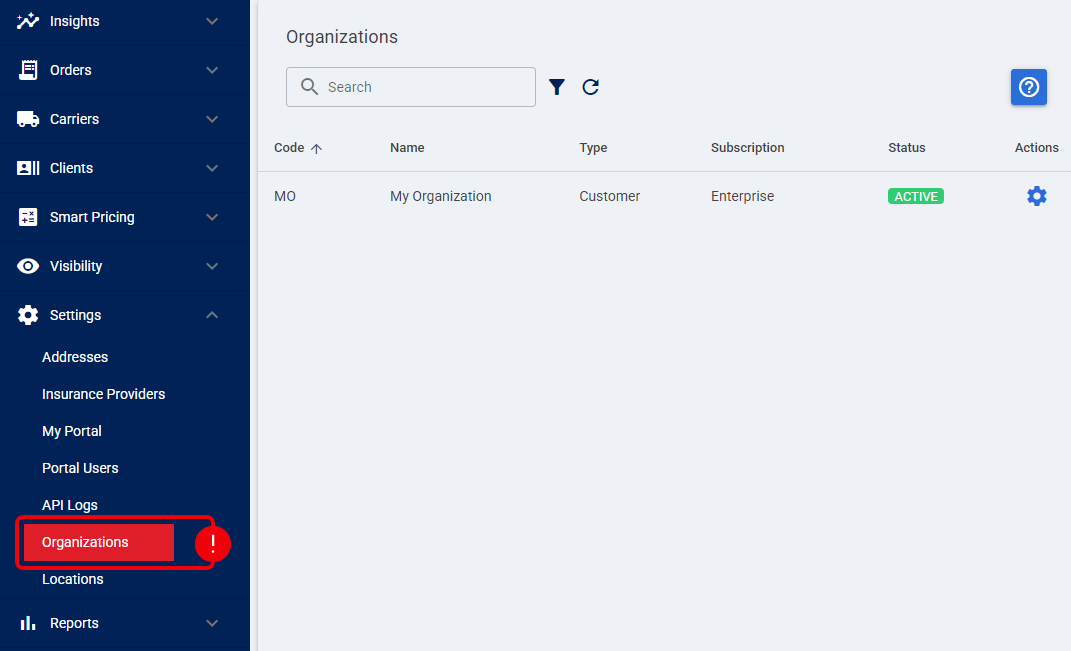
Organization Edit View
Clicking on the Settings icon for a specific Organization allows you to access its edit page. This view is divided into key sections that govern the default configuration for all linked facilities.
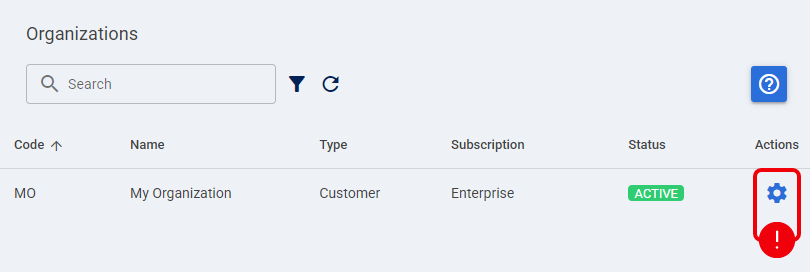
General Settings
This section displays the core identity and global billing details associated with your account. Here, you can view your current Subscription Level and Name, but you can only manually update the visual branding. For detailed instructions on updating your company branding, refer to How to Change an Organization Logo [Step-by-Step Guide].
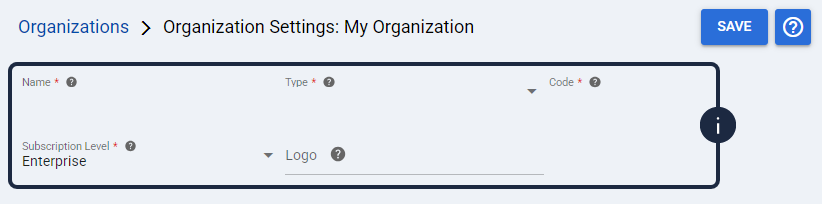
Locations Tab
The Locations tab acts as a dedicated container, allowing you to view and access all child facilities associated with the parent Organization. It provides a unified, cross-regional view of your operational entities. For comprehensive instructions on configuring these operational facilities, refer to Managing Locations [Guide].
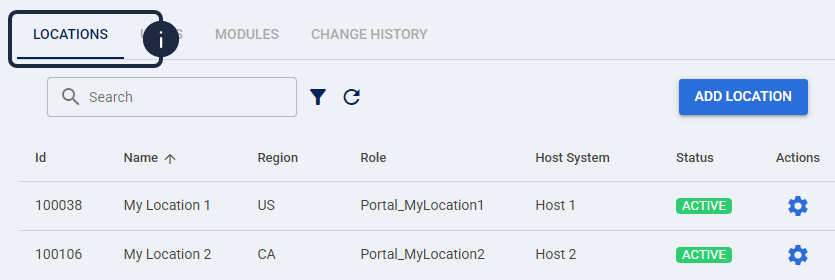
| Locations can only be created from this tab. For more information, see: How to Create a Location [Step-by-Step Guide]. | |
| | ||
Users Tab
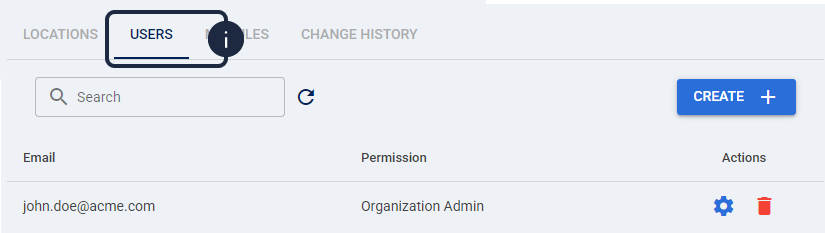
The Users tab is where you manage access control at the highest administrative level within the system. Here, you assign permissions for users requiring broad access across the entire hierarchy of child facilities. For comprehensive details on permission roles and capabilities, refer to Understanding Organization Users [Guide].
Modules Tab
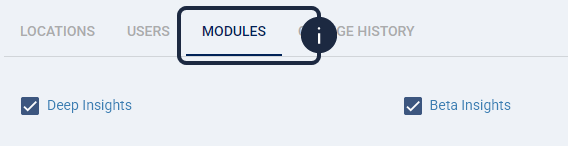
In the Modules tab, you can review the Deep Insights and Beta Insights entitlements configured for your Organization. These entitlements apply to every linked Location. To learn more about available Insight Dashboards, see: Insights Dashboards Master List [Guides List].
Change History Tab
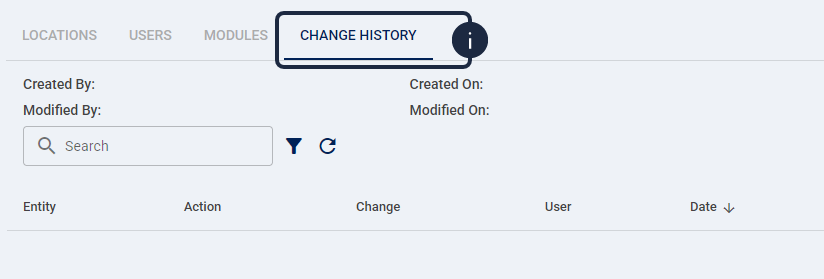
The Change History tab provides a comprehensive audit log of modifications made to the Organization. Here, you can review detailed records showing exactly which user made a change, the specific property modified, the old and new values, and the exact timestamp of the action. For details on using this tab, refer to How to Review Change History Logs for Supported Entities [Step-by-Step Guide].
Was this article helpful?
That’s Great!
Thank you for your feedback
Sorry! We couldn't be helpful
Thank you for your feedback
Feedback sent
We appreciate your effort and will try to fix the article