You can use the References tab within a Sales Order or Purchase Order to manage key-value pairs associated with the order, its specific lines, or the assigned customer.
This guide explains how to view, filter, add, and edit references within an Order.
 NOTE: Screenshots in this article are provided for illustrative purposes. While all described procedures remain the same, minor UI differences may exist depending on your specific use case.
This article is divided into the following sections
- References Tab
- Accessing the References Tab
- Understanding the Reference Table
- Add a New Reference (Order & Order Line)
- Filter and Search References
- Edit or Delete a Reference
- Edit a Reference
- Delete a Reference
I. REFERENCES TAB
techOMS centralizes all reference data in a single view, allowing you to track codes and values associated with the order's lifecycle.
i. Accessing the References Tab
 NOTE: Make sure that you are operating at the right Vendor/Warehouse beforehand.
1. Open the desired Sales Order or Purchase Order.
NOTE: For more information on finding the desired order, see:
2. Click the References tab.
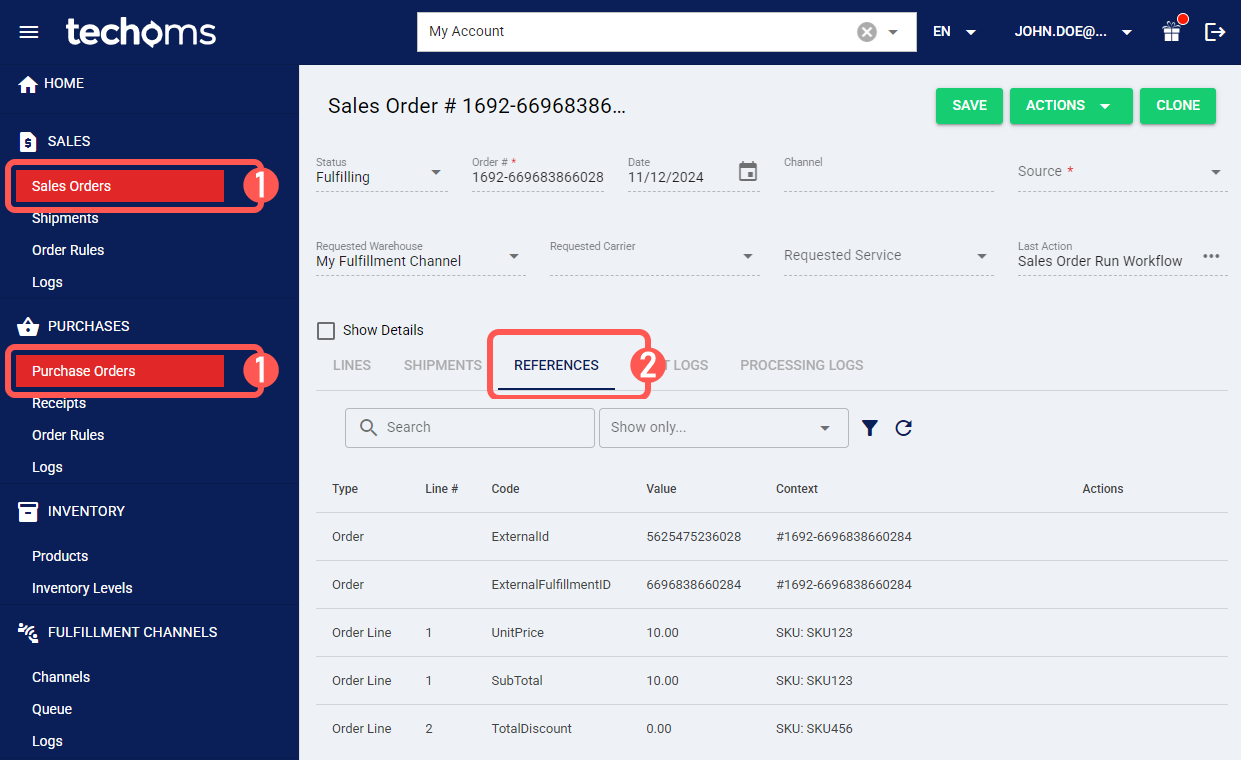
ii. Understanding the Reference Table
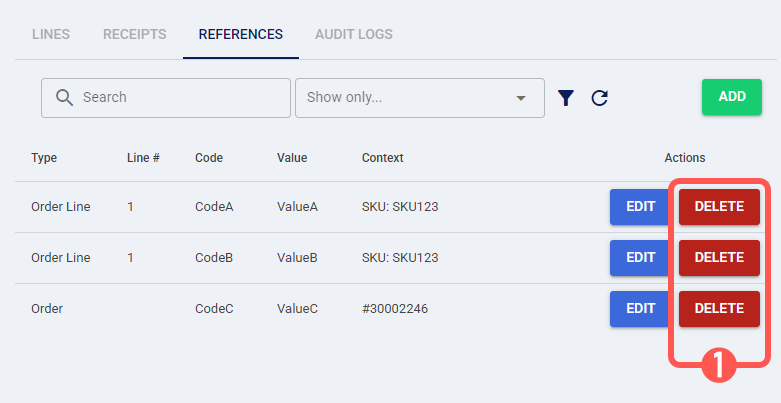
The table displays the following information columns:
Type: Indicates the source level of the reference:
Order: Applies to the order as a whole.
Order Line: Applies to a specific line within the order.
Line #: Displays the specific line number (only populated for Order Line references).
Code and Value: The reference key-pair data (e.g., Code: InternalID, Value: 12345).
Context: Provides additional identifying information to help distinguish references:
For Order references, it shows the Order #.
For Order Line references, it shows the SKU.
II. ADD A NEW REFERENCE (ORDER & ORDER LINE)
You can manually add references to the Order or specific Order Lines directly from this tab.
NOTE: You can only add new references when the Order is in Draft status.References defined on a Customer profile are automatically copied to this list with the Order type when you assign that Customer to a Sales Order and save it. You do not need to add them manually. For more details on this process, see:
To add a reference:
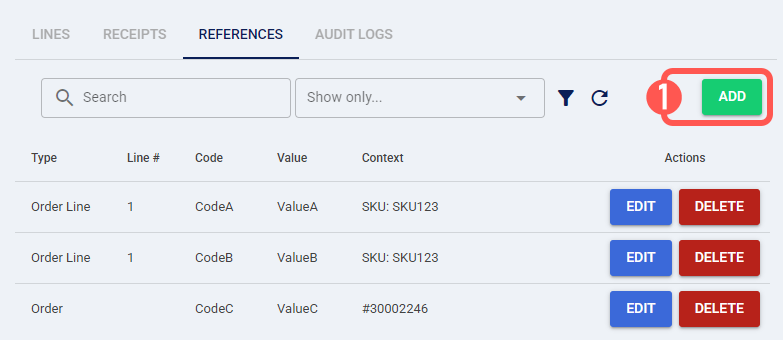
1. Inside the References tab, click Add.
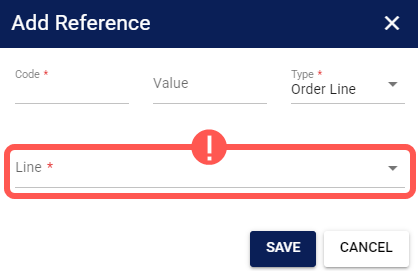
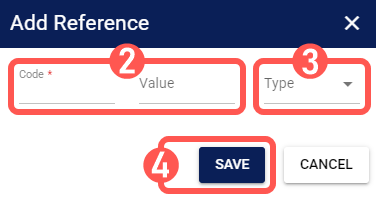
2. Enter the reference Code and Value.
3. Select the reference Type:
Order
Order Line: If you select Order Line, choose the specific Line item you want to associate the reference with.
4. Press Save.
III. FILTER AND SEARCH REFERENCES
When an order contains a large number of references, you can use the search and filter tools to locate specific data:
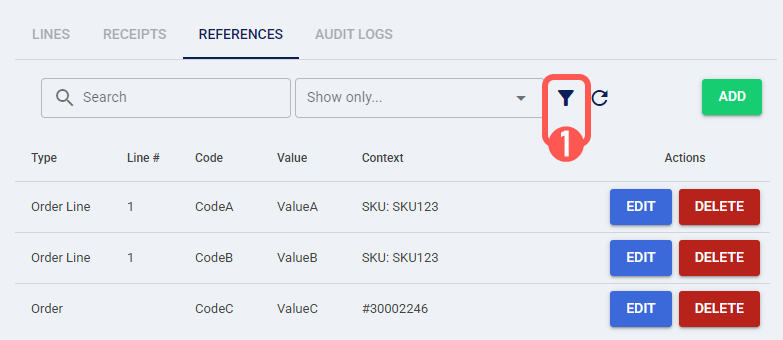
- Search bar: Quickly locate matches by Value.
- Quick Filter (Show only...): Instantly toggle the view between references Type.
- Advanced Filter: Narrow results more precisely as described in the procedure below:
1. Click the Filter icon next to the search bar.
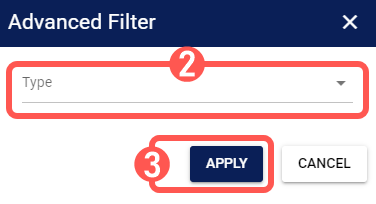
2. Select the Type you wish to view.
NOTE: If you select Order Line, you can further filter by Line # or Line SKU to display only the references associated with that item.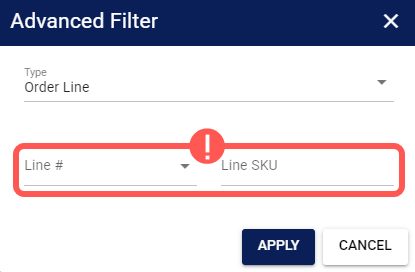
3. Press Apply.
IV. EDIT OR DELETE A REFERENCE
You can modify or remove any reference displayed in the list, including those that were originally copied from a Customer entity.
NOTE: You can only edit or delete references when the Order is in Draft status.
 WARNING: If you edit or delete a reference that was originally copied from a Customer, it will not be restored automatically unless you re-select the Customer in the Ship To field (which may duplicate other references). For more information, see: Understanding Customers and Customer References [Guide].
i. Edit a Reference
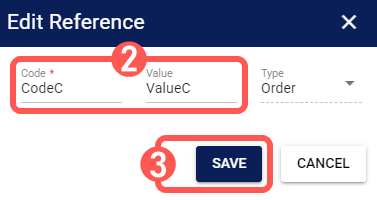
1. Press Edit next to the desired reference.
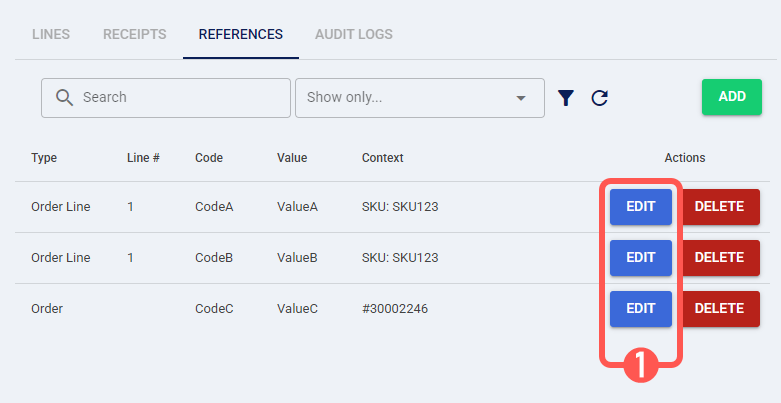
2. Update the Code or Value as needed.
3. Click Save.
ii. Delete a Reference
1. Press Delete next to the desired reference.
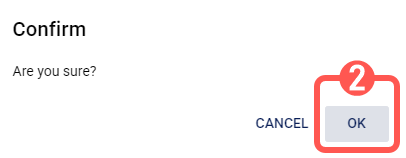
2. Click OK to confirm.
Was this article helpful?
That’s Great!
Thank you for your feedback
Sorry! We couldn't be helpful
Thank you for your feedback
Feedback sent
We appreciate your effort and will try to fix the article