 NOTE: This guide covers Wix (API v1) Sales Channel setup. For instructions on the Wix (API v3) Sales Channel, see How to set up a Wix (API v3) Sales Channel [Step-by-step guide]
To connect Wix, first create a Sales Channel connection, and then set up its parameters.
Once the connection is established between the channel and techOMS, you can use all its supported features as listed in the techOMS Sales Channels - Master List [Guides List].
This article is divided into the following sections:
- Onboarding Requirements
- Create the Sales Channel
- Configure Additional Parameters
NOTE: Make sure that you are operating at the right Vendor/Warehouse beforehand. 
I. ONBOARDING REQUIREMENTS
- This plugin is developed for Wix Stores Catalog v1 API
 WARNING: Make sure to identify your Catalog API version before moving forward.
 - Install the techOMS App from the Wix App Market (steps provided in section II)
II. CREATE THE SALES CHANNEL
 NOTE: This section is partly performed in Wix. The following instructions are provided as guidance and may change without notice.
To create a Wix sales channel:
1. Access the Wix App Market here: https://manage.wix.com/app-market
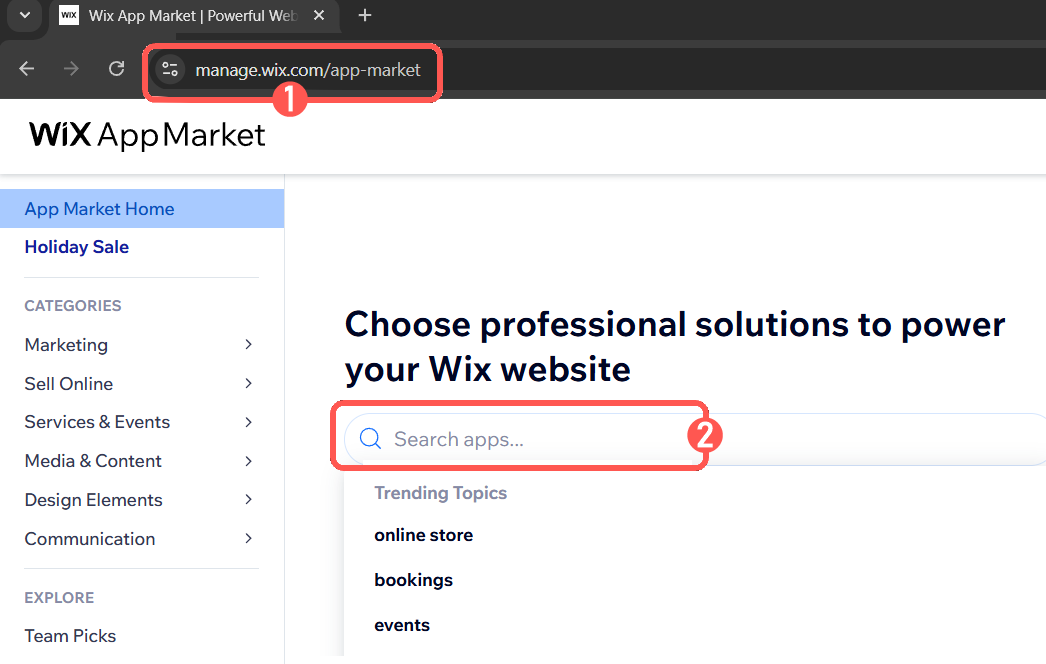
2. Search for techOMS using the search bar, locate the techOMS app and click on it.
3. Press Add to Site to be redirected to your Wix administration console.
 NOTE: If you have more than one Wix site, you will be prompted to select one. Do it and confirm again to complete the techOMS app installation.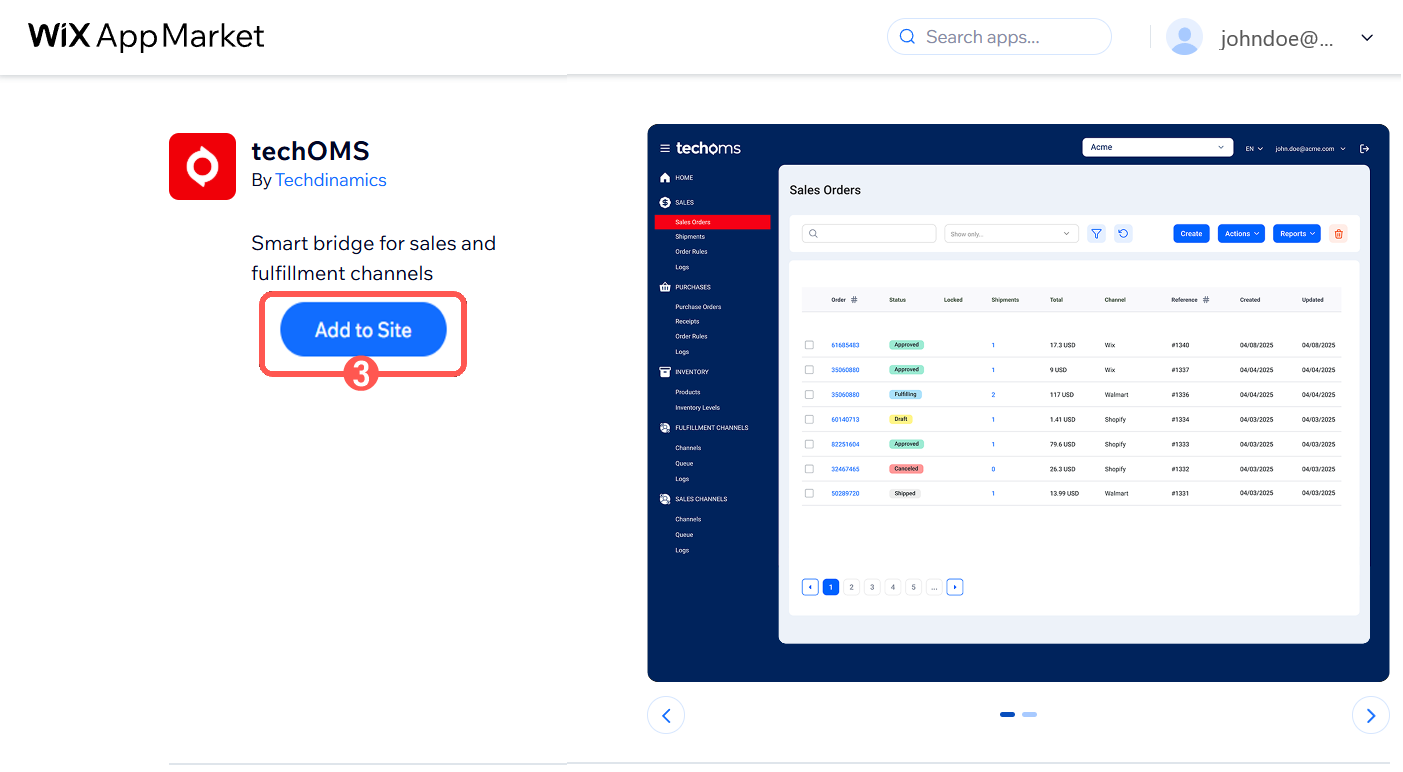
Once confirmed, you will be automatically redirected to techOMS.
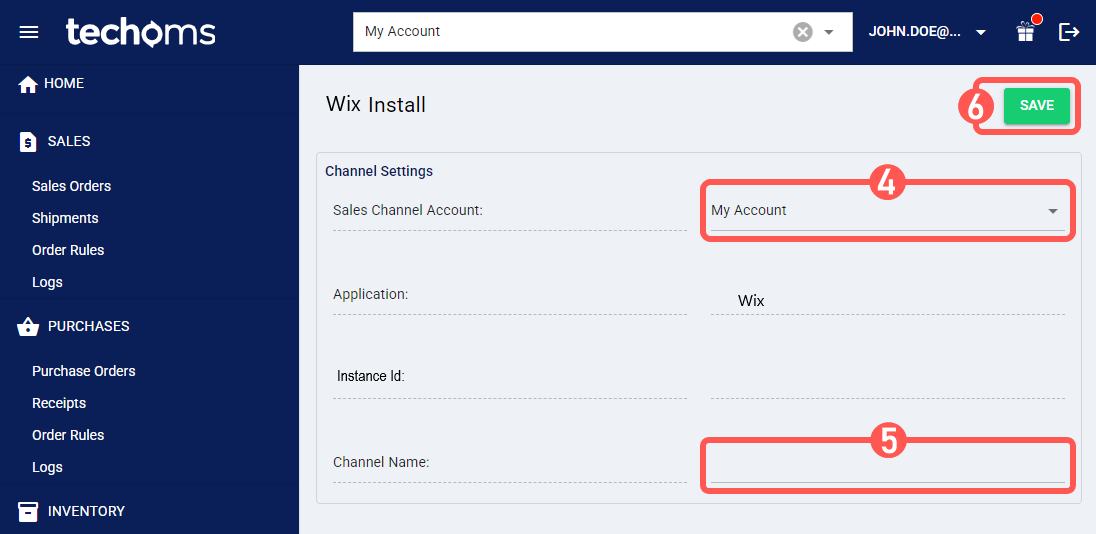
4. Select the Sales Channel Account you want to create the connection under.
5. Name the Channel for proper identification.
6. Press Save to complete the process.
NOTE: A single account can only have one Wix Sales Channel, regardless of version.III. CONFIGURE ADDITIONAL PARAMETERS
1. Click Channels from the left menu under the Sales Channels section.
2. Click on the created channel's name.
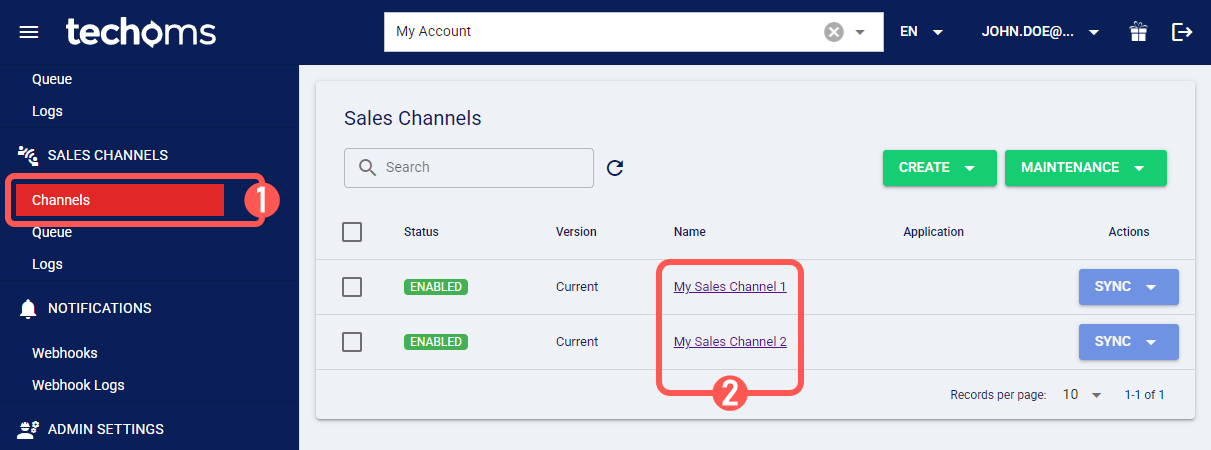
3. Configure its parameters in Sections A, B, and C as required. 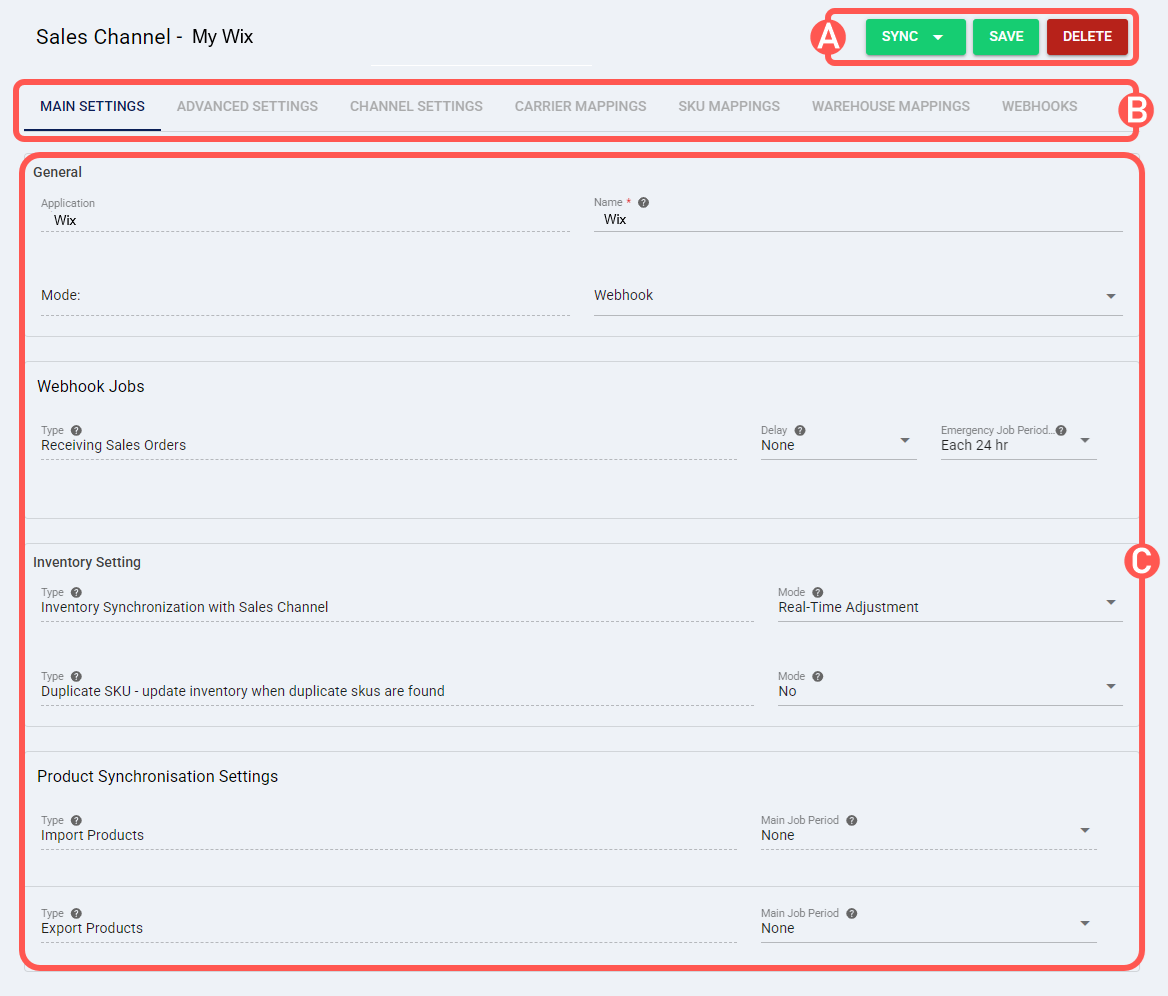
SECTIONS
A) QUICK ACTIONS lets you perform additional actions:
- Sync: Enables manual synchronization as detailed in How to Synchronize data through a Sales Channel [Step-by-step guide].
 WARNING: Product push supports converting products with variants into products without variants, and vice versa.
When Wix generates cartesian variant combinations, any variants that do not exist in techOMS will be created in Wix without SKU or visibility. - Save: Saves and commits changes.
- Delete: Deletes the channel connection.
B) VIEW SELECTION allows you to navigate the different tabs:
- Main settings (default): Configures general and automation behavior using the options outlined in Main Settings of a Beta Sales Channel [Information].
- Advanced settings: Configures additional system/privacy settings using: How to manage Fulfillment Channels Advanced settings [Step-by-Step guide].
- Channel settings: Sets the following channel integration parameters.
- Api URL: The base URL for the Wix REST APIs requests.
- Instance Id: Unique identifier automatically generated by Wix to identify techOMS installation on your Wix store.
- Site ID: Unique identifier of your app within the Wix site. Alphanumeric, dashed ID contained in your Wix web browser session, in the address bar.
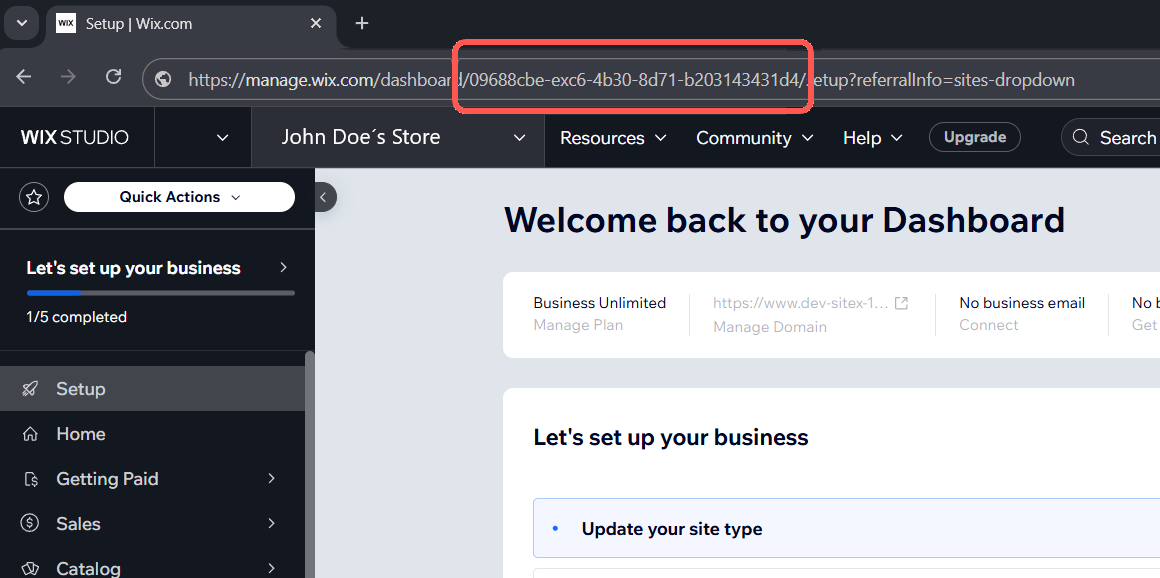
 WARNING: Site ID is required for Webhooks to properly work.
 - Download Orders with the following Order Status: Specifies which Mercado Libre order statuses are eligible for synchronization (Initialized, Approved, Pending, Canceled, Rejected).
- Throughput: Select your subscription plan. This will adjust techOMS order synchronization and operation speed accordingly.
- Process Pickup Orders: Controls whether pickup orders are synchronized into techOMS. If set to No, pickup orders are not synchronized. If set to Yes, pickup orders are synchronized along with delivery orders.
- Carrier Mappings: Sets Carrier name mappings as detailed in How to map Carriers in a Sales Channel [Step-by-step guide]. WARNING: The Carrier Mapping for this channel is only used for receiving orders into techOMS.
- SKU Mappings: Reviews and sets SKU mappings as detailed in How to map SKUs in a Sales Channel [Step-by-step guide].
- Warehouse Mappings: Binds or modifies the connection to a specific warehouse by assigning or modifying the Warehouse IDs. This links the techOMS warehouse with the corresponding identifier in the Sales Channel.
 WARNING : Things to consider when Sales Orders are synchronized from Wix.
- Make sure the required warehouse mappings are configured before synchronizing Sales Orders.
- If an order does not have a location assigned, the default Wix location configured on the client’s site will be automatically assigned.
- If no default Wix location is configured, or if the location (default or assigned) is not mapped in the warehouse mapping settings in techOMS, the order will not be synchronized.
WARNING : Things to consider when pushing inventory levels to Wix.- Wix does not support stock by location. Inventory levels are grouped by SKU and summed before being sent.
- If negative quantities are sent during inventory updates, Wix will receive a value of 0 instead.
- Inventory adjustments are only sent if the warehouse mappings are configured.
- Webhooks: Steps to set up Webhook connections for Wix Stores Catalog API
 WARNING: This procedure requires Channel Mode to be set to Webhooks in the Main Settings tab. For more information, see: How to configure Automations for Sales/Fulfillment channels [Step-by-step guide]
 i. Pre setup Steps in techOMS
1. Open the Sales Channel, select the Webhooks tab and press Create.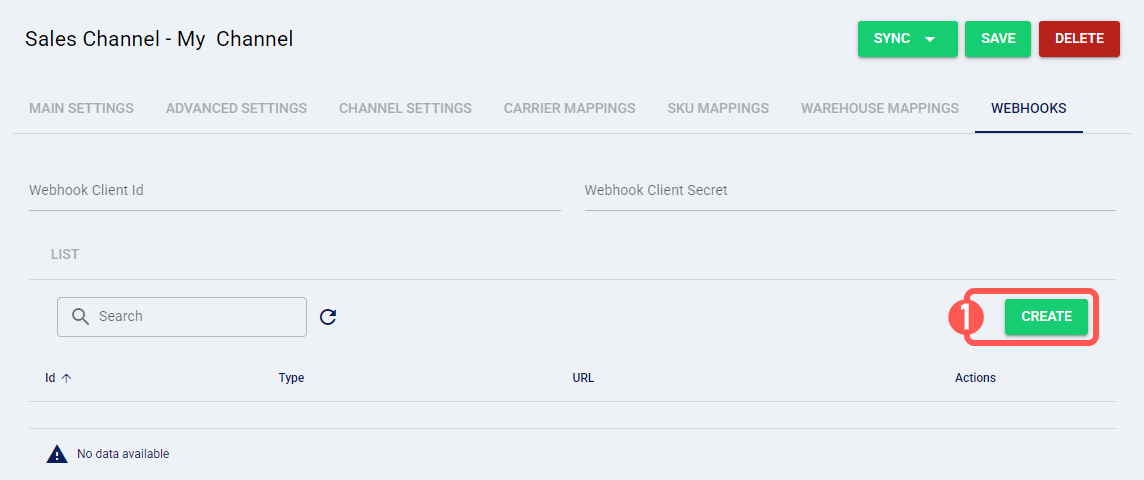
2. Select the connection type from the Type dropdown menu. System will automatically generate a URL.
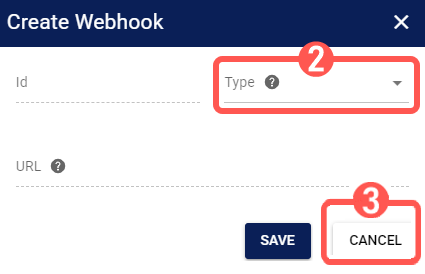
3. Copy the newly generated URL, DO NOT Save it and press Cancel.
NOTE: You need this URL to complete your Webhook configuration in Wixii. Wix Setup Steps
Login to your Wix site: https://manage.wix.com/
1. Select Automation from the left menu
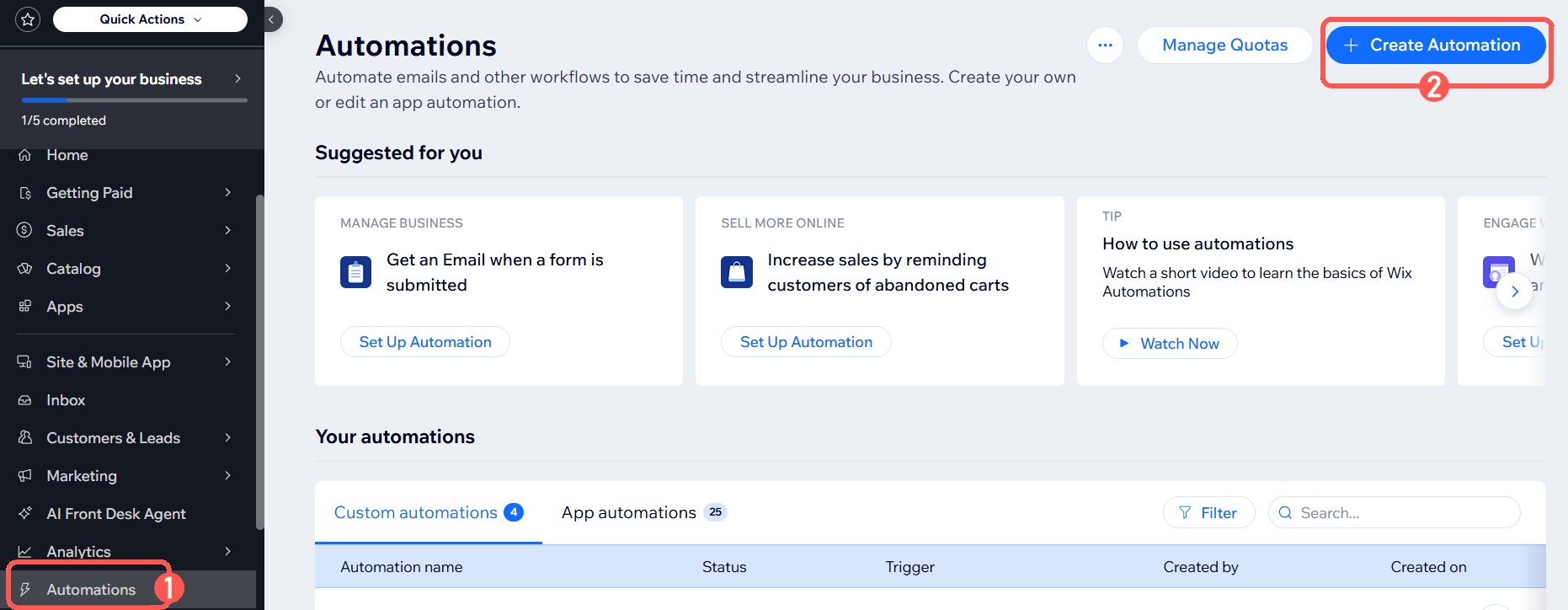
2. Select Create Automation3. In the pop-up screen, select Start from Scratch
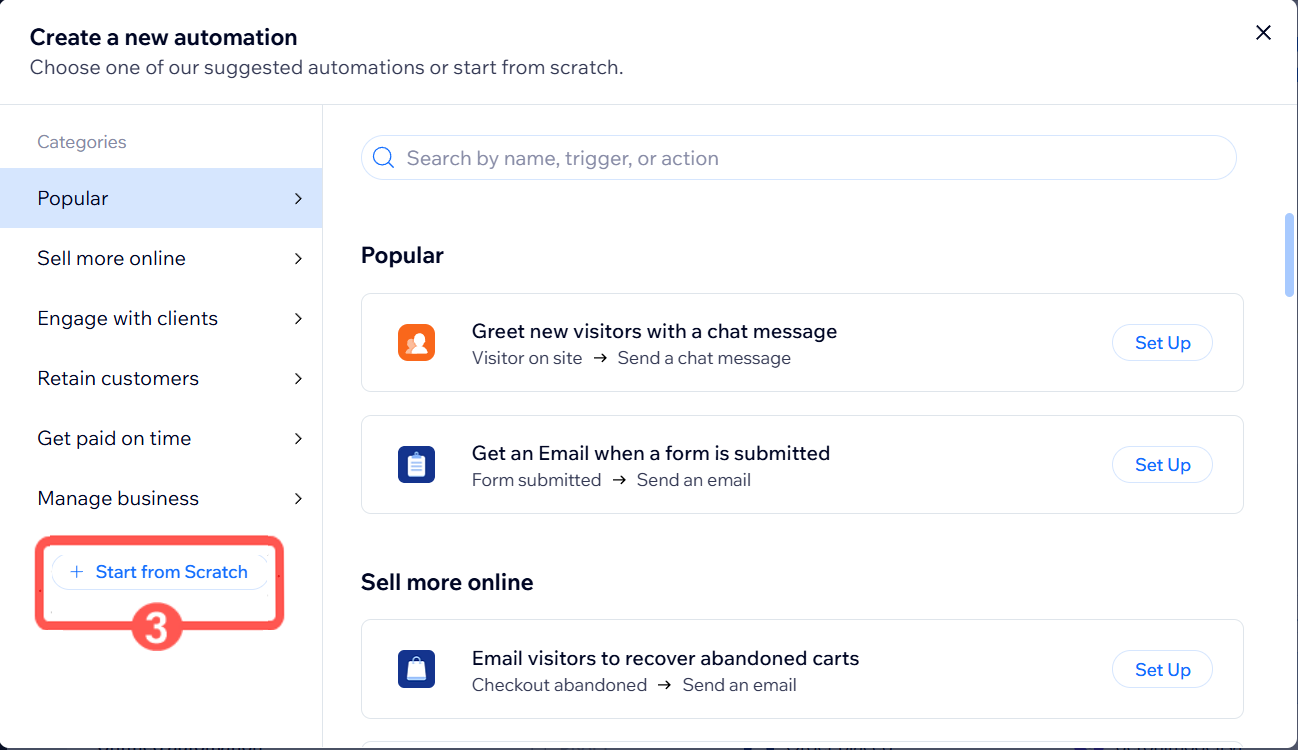
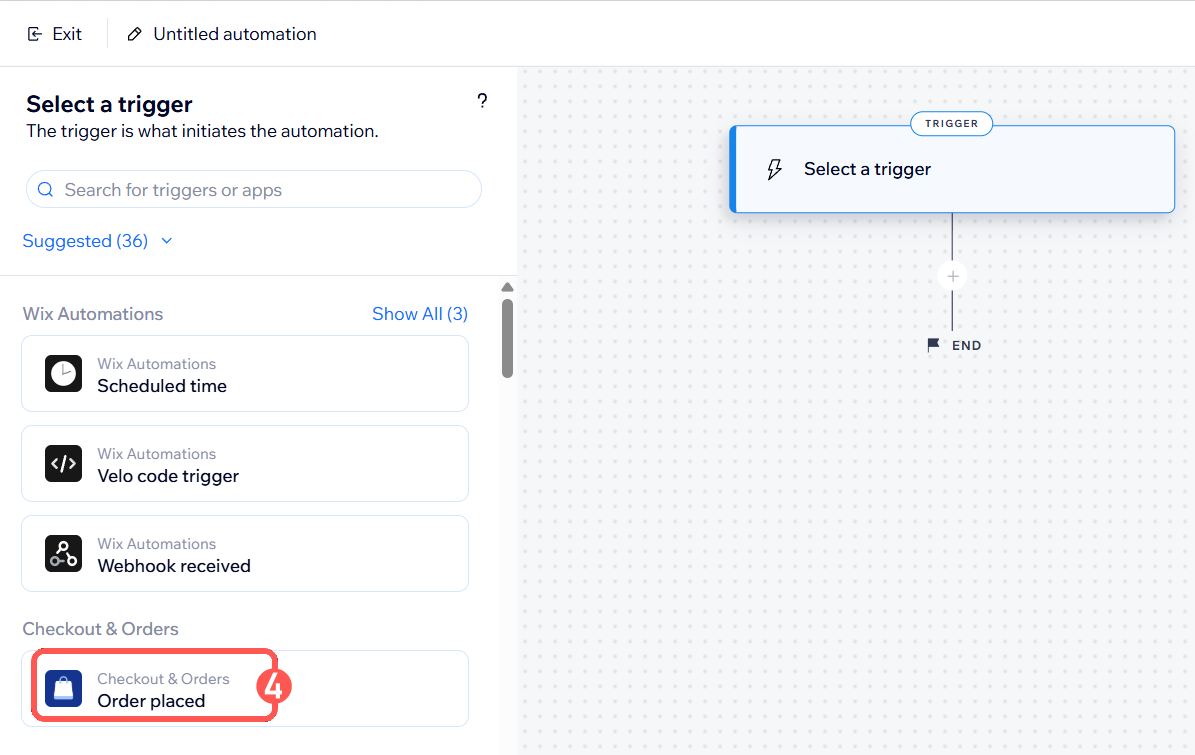
4. On the left menu, select trigger: Order placed.
5. Hit the "+" icon under Order placed to add an action.
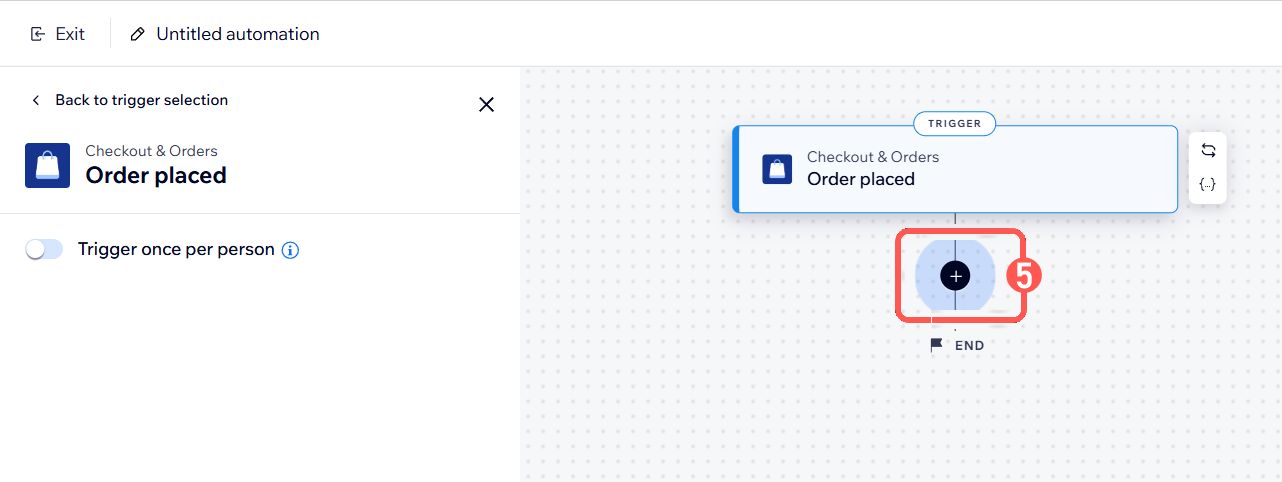
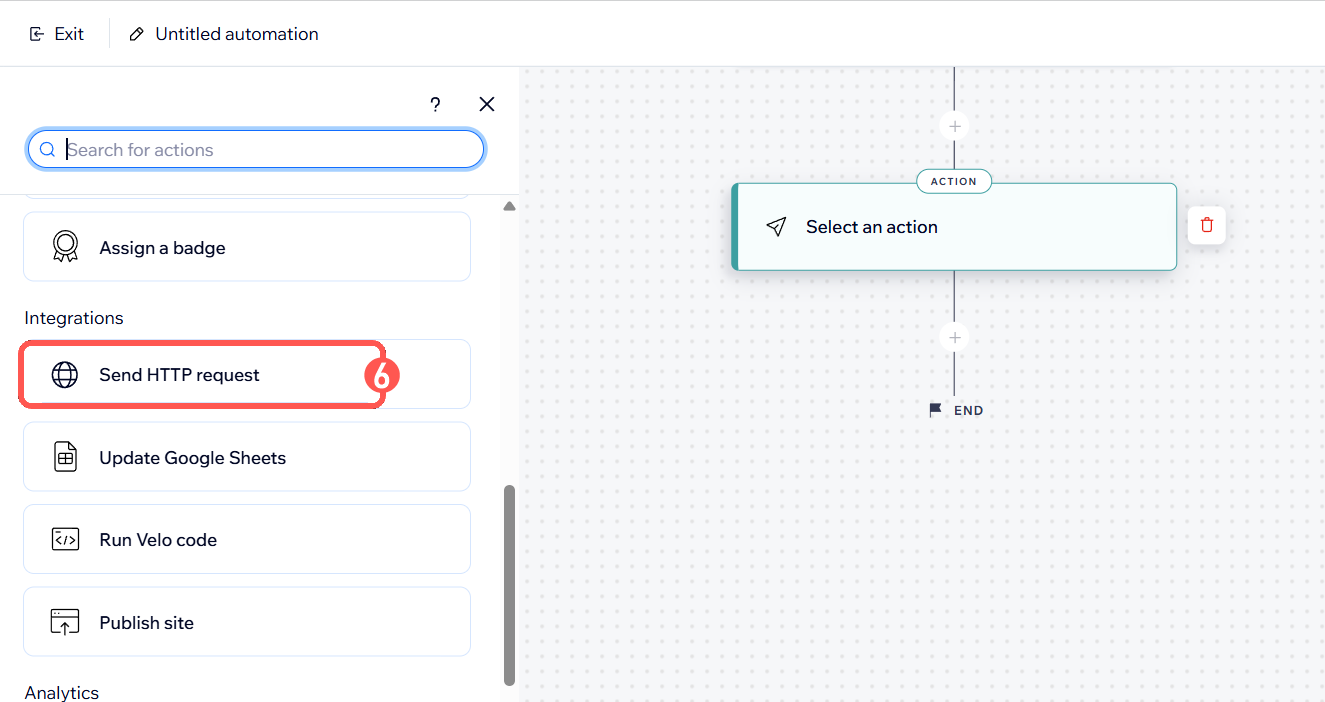
6. Select Send HTTP Request.
7. Paste the Webhook URL obtained from the Pre Setup step 3.
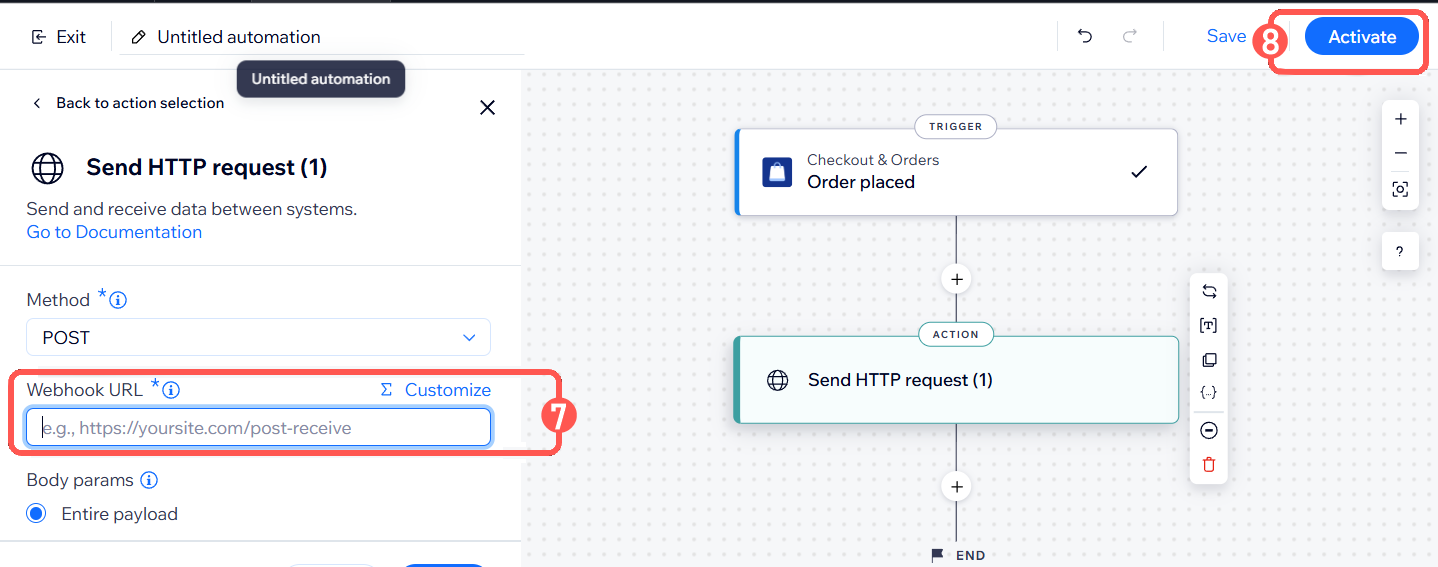
8. Hit Activate on the top right corner.WARNING: If the order status in Wix does not match any of the values configured in Download Orders with the following Order Status field (See Channel Settings), the order will not sync to techOMS.
C) CONTENT VIEW displays and/or allows editing of the settings in the "View Selection" section.
WARNING: Remember to press Save to commit the changes made in this section.Was this article helpful?
That’s Great!
Thank you for your feedback
Sorry! We couldn't be helpful
Thank you for your feedback
Feedback sent
We appreciate your effort and will try to fix the article