Shipment references allow you to view specific key-value pairs associated with the fulfillment process. These details provide crucial traceability between techOMS and your downstream Fulfillment Channel.
This guide explains how to access, view, and filter read-only shipment references.
TABLE OF CONTENTS
Understanding Shipment References
All data within the shipment references view is strictly read-only. You cannot manually add, edit, or delete references from this screen.
Data Sources
The data displayed in this table is automatically populated from two distinct sources:
- Inherited Data: Metadata and references originally assigned to the Sales Order are copied over to the Shipment to maintain full traceability.
- Fulfillment Channel Injection: When the Fulfillment Channel processes the order, it might generate its own internal identifiers. If applicable, the integration plugin automatically injects this data at the Shipment (header) level.
 | References associated with specific packages or package lines are not supported or displayed in this view. | |
| | ||
Understanding the Reference Table
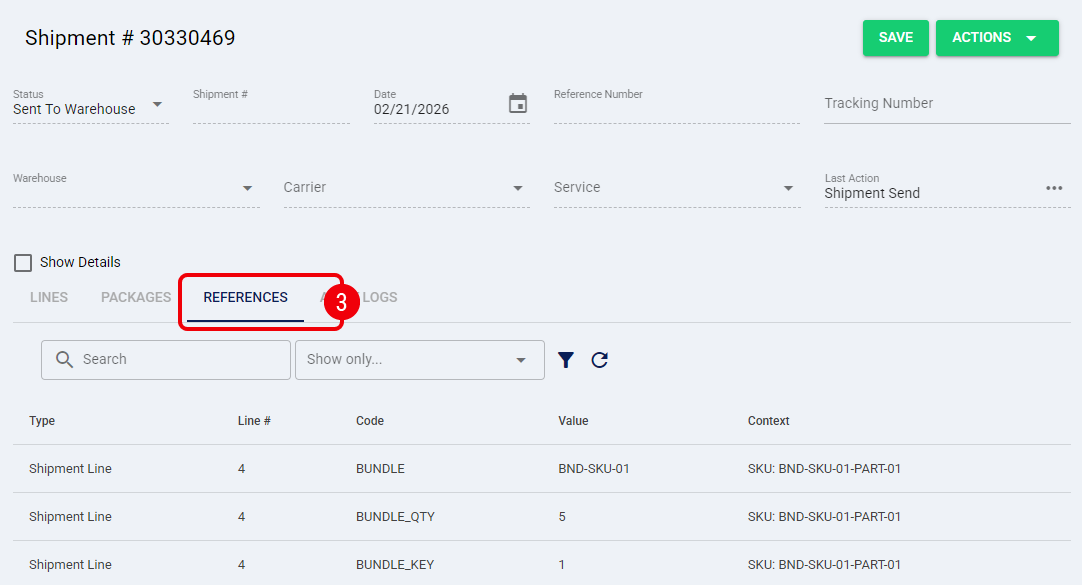
The table displays the following information columns:

- Type: Indicates the source level of the reference:
- Shipment: Applies to the shipment as a whole.
- Shipment Line: Applies to a specific line within the shipment.
- Line #: Displays the specific line number (only populated for Shipment Line references).
- Code and Value: The reference key-pair data (e.g., Code:
InternalID, Value:12345). - Context: Provides additional identifying information to help distinguish references (e.g., for Shipment Line references, it shows the SKU).
Viewing Shipment References
Accessing the References Tab
| Make sure that you are operating at the correct Account in the top header before proceeding. | |
| | ||
To view the references for a specific shipment, follow these steps:
 | Click Shipments from the left menu under the Sales section. |
 | Locate and click on the desired Shipment #. |
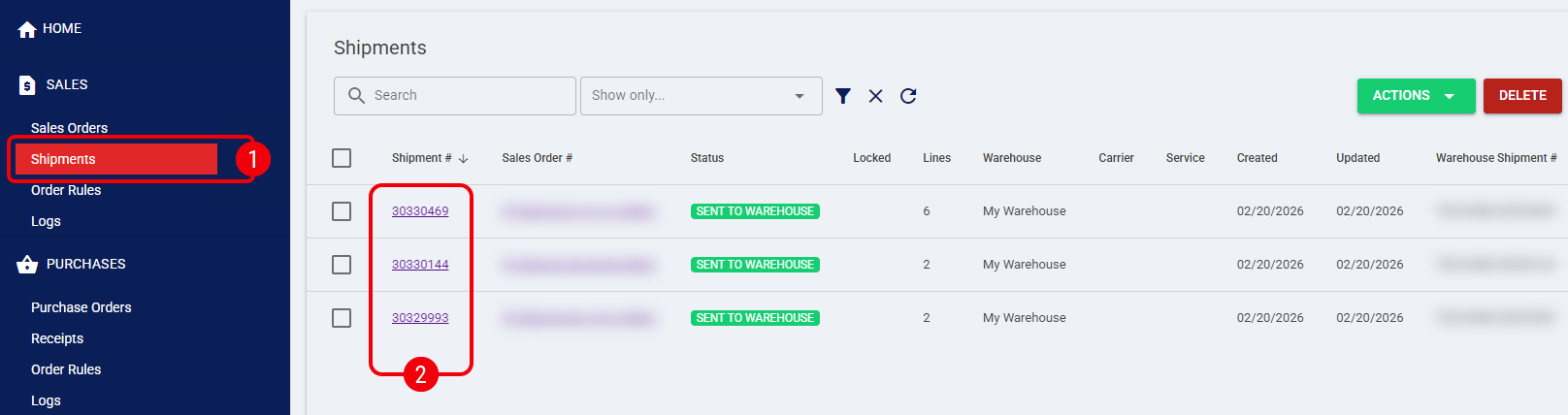
| To learn more about locating records, refer to How to find/filter Shipments [Step-by-Step Guide]. | |
| | ||
 | Inside the shipment details view, click the References tab. |
Filtering Shipment References
When a shipment contains a large number of references, you can use the built-in filtering tools to locate specific data.
The reference table displays the inherited and injected entries. You can filter these records using two methods:
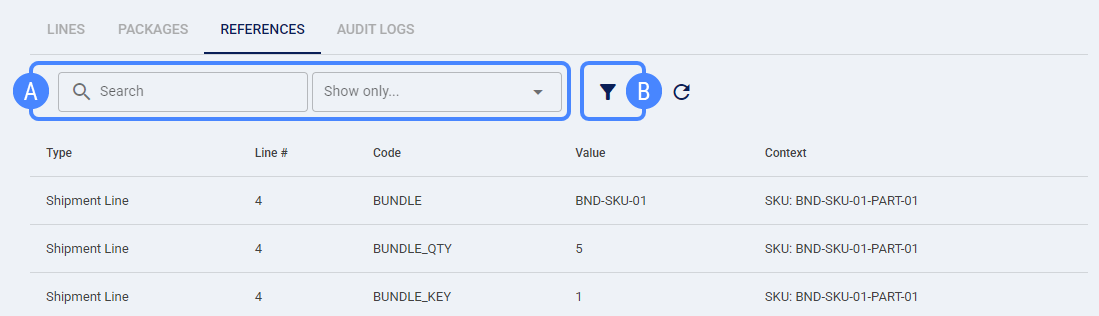
 | Quick Filter: Use the search bar to look for matching entries, or click the Show only... dropdown to instantly toggle the view between Shipment (header-level references) and Shipment Line (line-level references). |
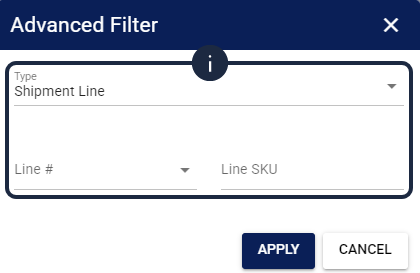
 | Advanced Filter: Click the Filter icon to open the advanced search dialog. You can refine your search using the following fields: |
- Type: Select whether to view references at the Shipment or Shipment Line level. If filtering by Shipment Line, you can also use the following filters:
- Line #: Select the specific line number associated with the reference.
- Line SKU: Enter the specific SKU associated with the reference.
| The fields displayed in the Advanced Filter dialog vary dynamically depending on the Type selected. The screenshot provided below is for illustrative purposes. | |
| | ||
The table will instantly update to display only the references that match your exact criteria, allowing you to easily track specific fulfillment metadata.
Was this article helpful?
That’s Great!
Thank you for your feedback
Sorry! We couldn't be helpful
Thank you for your feedback
Feedback sent
We appreciate your effort and will try to fix the article