The On Hold status protects your inventory immediately upon order intake by securing a virtual allocation before physical fulfillment begins. This workflow allows operators to safely review, edit, or override orders while maintaining strict inventory integrity.
This article explains how to manually manage and execute operational interventions for sales orders currently in the On Hold state.
These manual interventions override the core automated allocation workflows. For detailed conceptual information and advanced configuration, refer to Understanding Sales Order Holds and Virtual Allocation [Information].
TABLE OF CONTENTS
- System Safeguards: Blocked and Permitted Actions
- Executing Manual Interventions
- Recovering Failed Automation Tasks
System Safeguards: Blocked and Permitted Actions
When dealing with an On Hold order, techOMS enforces strict operational boundaries to protect the active allocation environment.
For any order or shipment currently in the On Hold state, the standard Unlock action has been forcefully disabled by design. This prevents you from accidentally interfering before the hold timer naturally expires or before a proper override action is executed from the Action Menu.
In contrast to the blocked features, the Clone action remains fully permitted. If a Customer Service agent needs to duplicate the order, they can safely clone the On Hold order. This action creates a new record without disrupting or resetting the critical hold timer of the original order.
Executing Manual Interventions
Manual operational interventions (human overrides) for orders currently resting in the On Hold state are executed directly from the main Sales Order details page or the Sales Order list view. These actions are triggered via the standard Action menu.
Accessing Manual Actions
To perform any of the interventions described below, follow these standard initial steps:
 | Make sure that you are operating at the right Account beforehand. | |
| | ||
 | Click Sales Orders from the left-hand navigation menu under the Sales section. |
 | Check the desired On Hold order(s). |
 | Press Actions. |
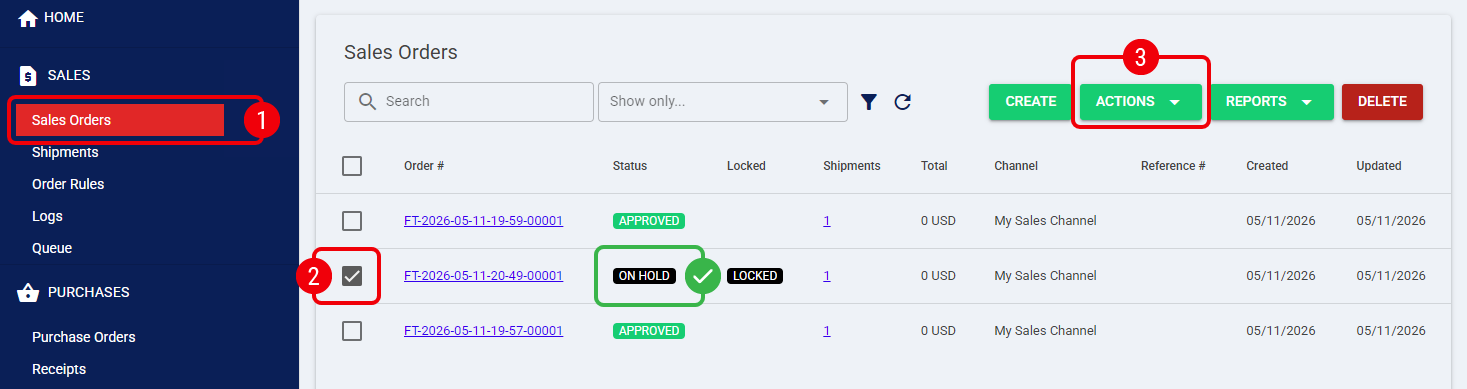
Update On-Hold (Download Order Update)
The Update On-Hold action forces techOMS to retrieve the latest order version from the sales channel.
When the Update On-Hold button is clicked, the system first compares the newly downloaded order against the existing one as an internal safety check. If there are no actual changes to the order in the sales channel, techOMS simply validates the version and aborts the update process—it does not delete or recreate the order.
If real modifications are detected, the system safely deletes the old order and its shipments, releases the reserved inventory momentarily, creates a brand-new updated order with the fresh data, and places it back On Hold, resetting the operational context completely.
 | Because a successful update process involves deleting the original order and creating a new one, there is a strict billing consequence. If you set an excessively long delay (e.g., 12 or 24 hours), and an order crosses over midnight into a new day before receiving an Update On-Hold action, techOMS will recreate the order on a different calendar day. The Techdinamics billing system will register this as two distinct orders, resulting in duplicate charges. Because of this, we strongly advise you to configure short delay windows (2 to 4 hours) to ensure updates happen within the same billing day. For instructions on configuring this setting, see: How to configure Automations for Sales/Fulfillment channels [Step-by-step guide]. | |
| | ||
From the Action menu, select Update On-Hold to trigger this action.
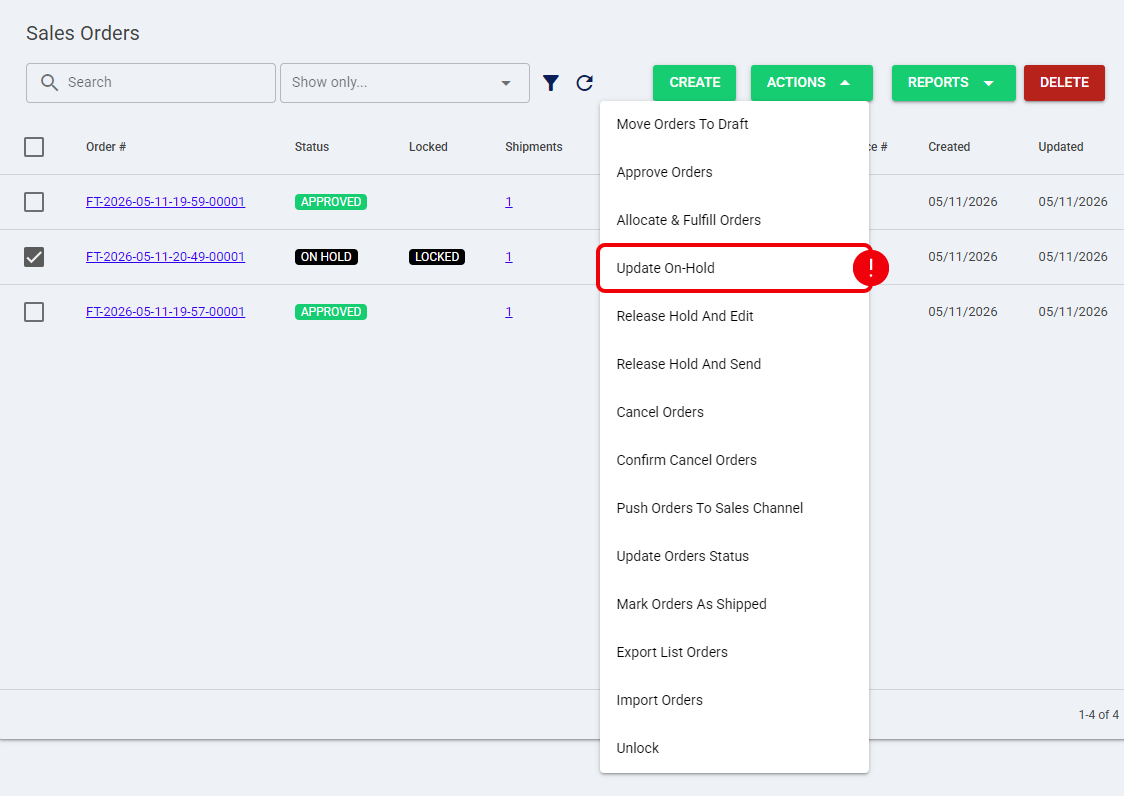
The system will evaluate the version, update the order if necessary, and place it back into the On Hold status.
Release Hold And Edit
The Release Hold And Edit action cancels the current shipments, releases the protected inventory back to the available pool, and moves the order backward in its lifecycle to the Draft status. This enables you to make manual corrections, such as changing a SKU, adjusting pricing, or updating a shipping address.
| Reprocessing this Draft later will subject it to the entire rule engine from scratch. It does not "resume" or "pause" the previous hold timer. If the newly edited order matches the Hold Action rule again upon processing, it starts a brand-new, full hold period from zero. | |
| | ||
From the Action menu, select Release Hold And Edit to move the order to the Draft state.
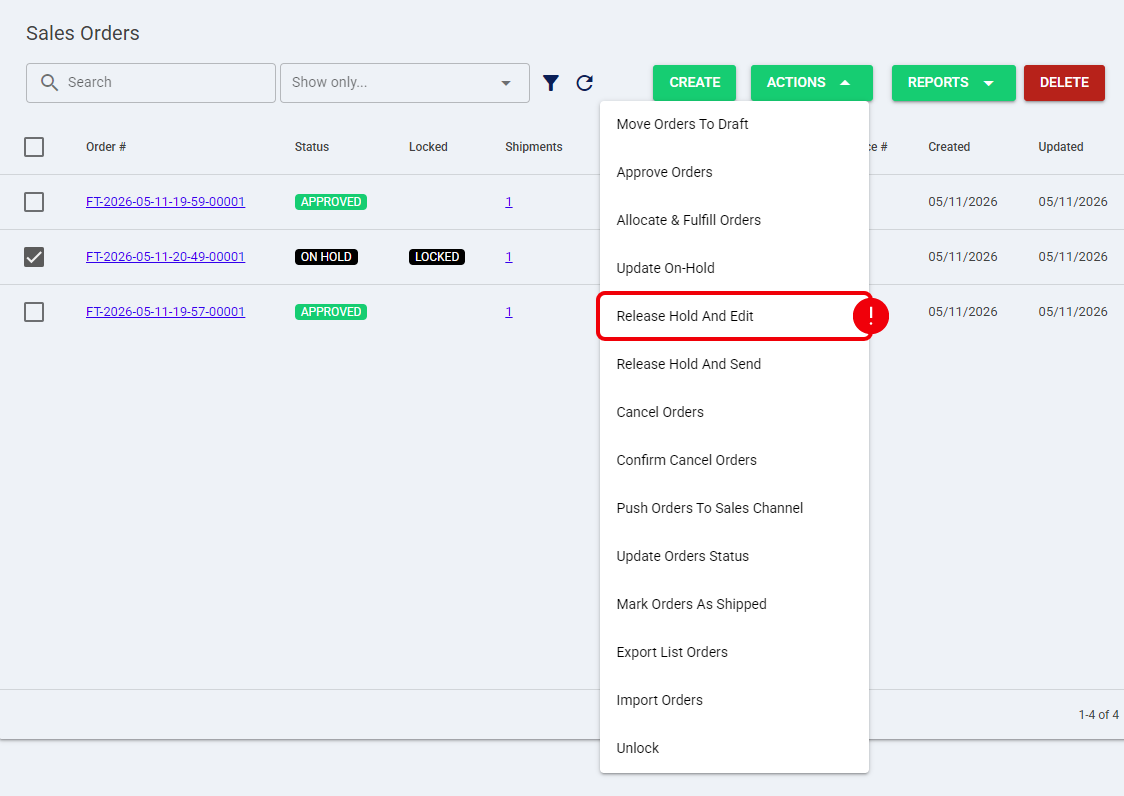
The order is now successfully edited. By reprocessing it, you ensure the system routes it through your active rules engine for proper allocation.
Release Hold And Send
The Release Hold And Send action completely bypasses and overrides the remaining hold timer. It pulls the latest channel info one last time to ensure absolute accuracy, instantly moves the order forward to the Approved status, and transmits the shipment directly to the Fulfillment Channel for immediate picking.
| If an order undergoes modifications in the Sales Channel at the exact same moment techOMS is attempting to execute the Release Hold And Send (or Update On-Hold) job, a race condition occurs. A concurrent recurring job might fetch the freshly modified order, causing it to fall back into the On Hold state immediately after being released. If you notice an order returning to On Hold after a release, you must manually intervene to resolve the sync conflict and force the order through. | |
| | ||
From the Action menu, select Release Hold And Send to bypass the timer.
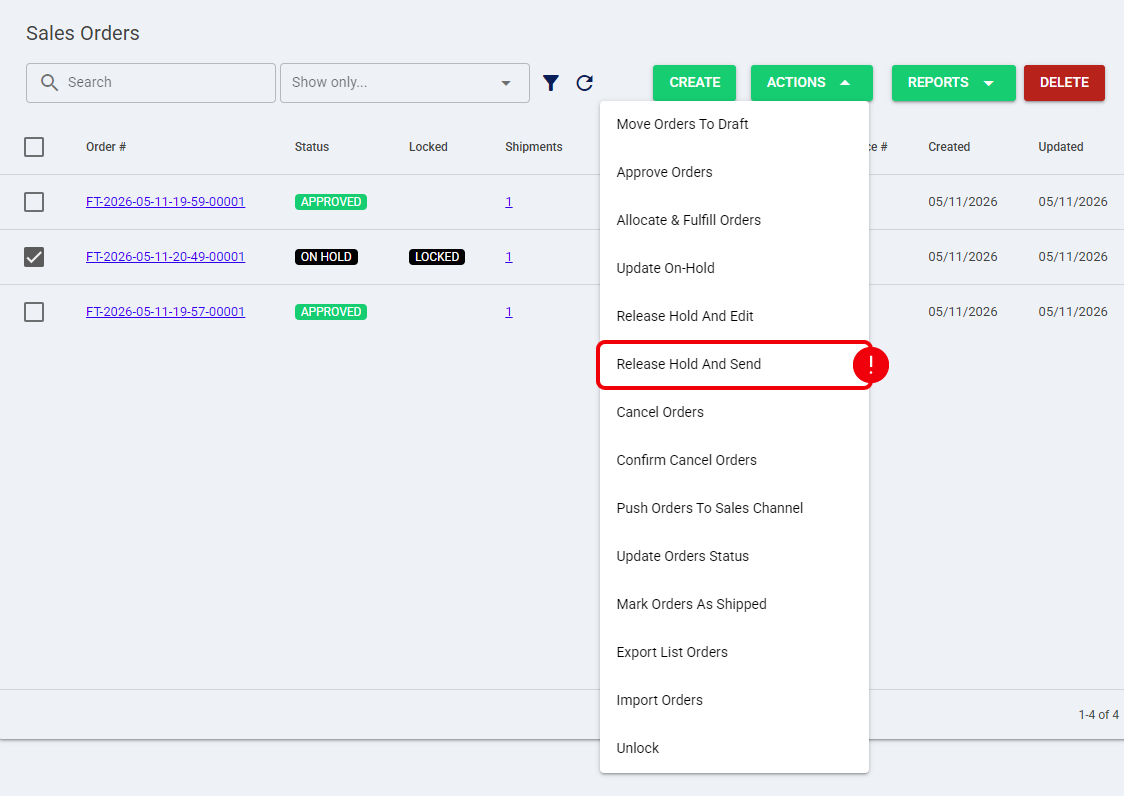
The order bypasses the hold timer entirely and transmits immediately to the Fulfillment Channel for physical allocation and picking workflows.
Recovering Failed Automation Tasks
If a synchronization conflict or a race condition causes an automation task to fail, you can investigate and resolve the issue directly from the operational queues. For instructions on how to recover failed automation tasks, refer to How to Manage System Queues [Guide].
Was this article helpful?
That’s Great!
Thank you for your feedback
Sorry! We couldn't be helpful
Thank you for your feedback
Feedback sent
We appreciate your effort and will try to fix the article