This article outlines how to find and filter products within techOMS for management.
For detailed conceptual information and advanced configuration, refer to How to Edit a Product [Step-by-Step Guide].
 NOTE: Make sure that you are operating at the right Account beforehand.
To find Products:
1. Click Products from the left menu under the Inventory section.
2. Use the Search bar to filter by any of the following:
- Name: Any part of Product or Variant Name.
- Code: Any part of Product Code.
- SKU: Any part of Variant SKU.
- Category: Enter the beginning of the Product's Category. Matching uses begins with behavior and is case-insensitive.
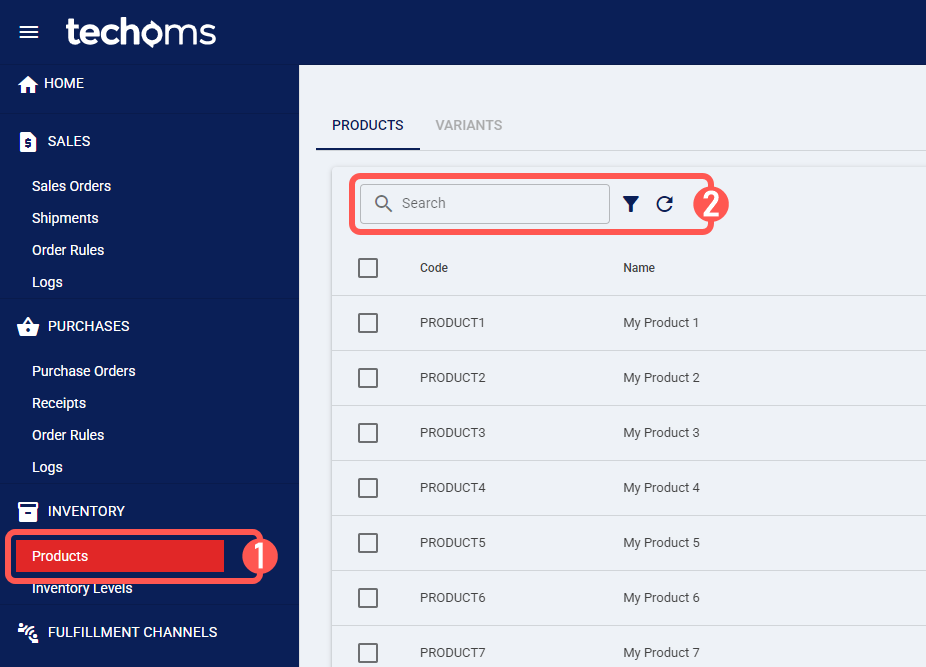
3. To refine the search, click the Advanced Filter icon.
 NOTE: When you use Variant-based filters, the results show Products that have at least one Product Variant matching the selected criteria.
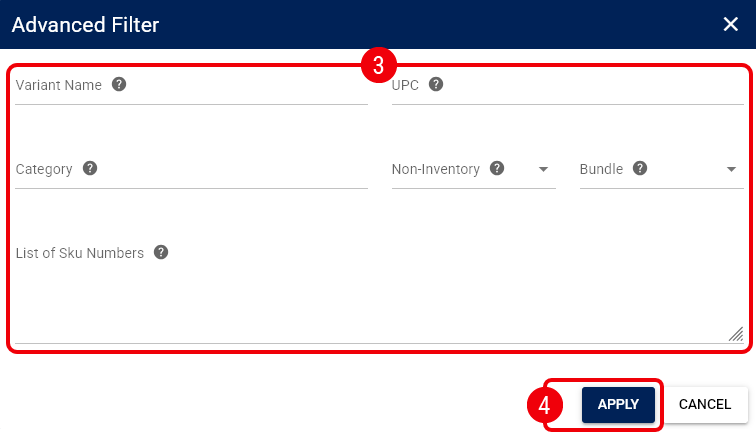
 You can filter by:
- Variant Name: Matches any part of the variant's name.
- UPC: Matches any part of the variant's Universal Product Code (UPC).
- Category: Matches Products whose Category begins with the entered value. Matching is case-insensitive.
- Non-Inventory: Filters based on whether the variant is marked as a non-inventory item.
- Bundle: Filters based on whether the variant is marked as a bundle.
- List of Sku Numbers: Filters by a comma-separated list of variant SKUs (e.g.,
SKUA, SKUB).
4. Press Apply to review the filtered entries.
To learn more about what you can do next, refer to the Inventory folder in our knowledge base.
Was this article helpful?
That’s Great!
Thank you for your feedback
Sorry! We couldn't be helpful
Thank you for your feedback
Feedback sent
We appreciate your effort and will try to fix the article