When performing maintenance tasks, you may need to edit an existing product variant or a product's details.
This guide covers how to modify these details in techOMS.
 | If techOMS is not set as your Account's Master Product Source, we recommend making changes directly in your Master Product Channel instead of using this procedure. Otherwise, be aware that changes made here:
Proceed with caution. | |
| | ||
 | Make sure that you are operating at the right Account beforehand. | |
| | ||
TABLE OF CONTENTS
Product Variant Interface
This section details all the available fields and options.
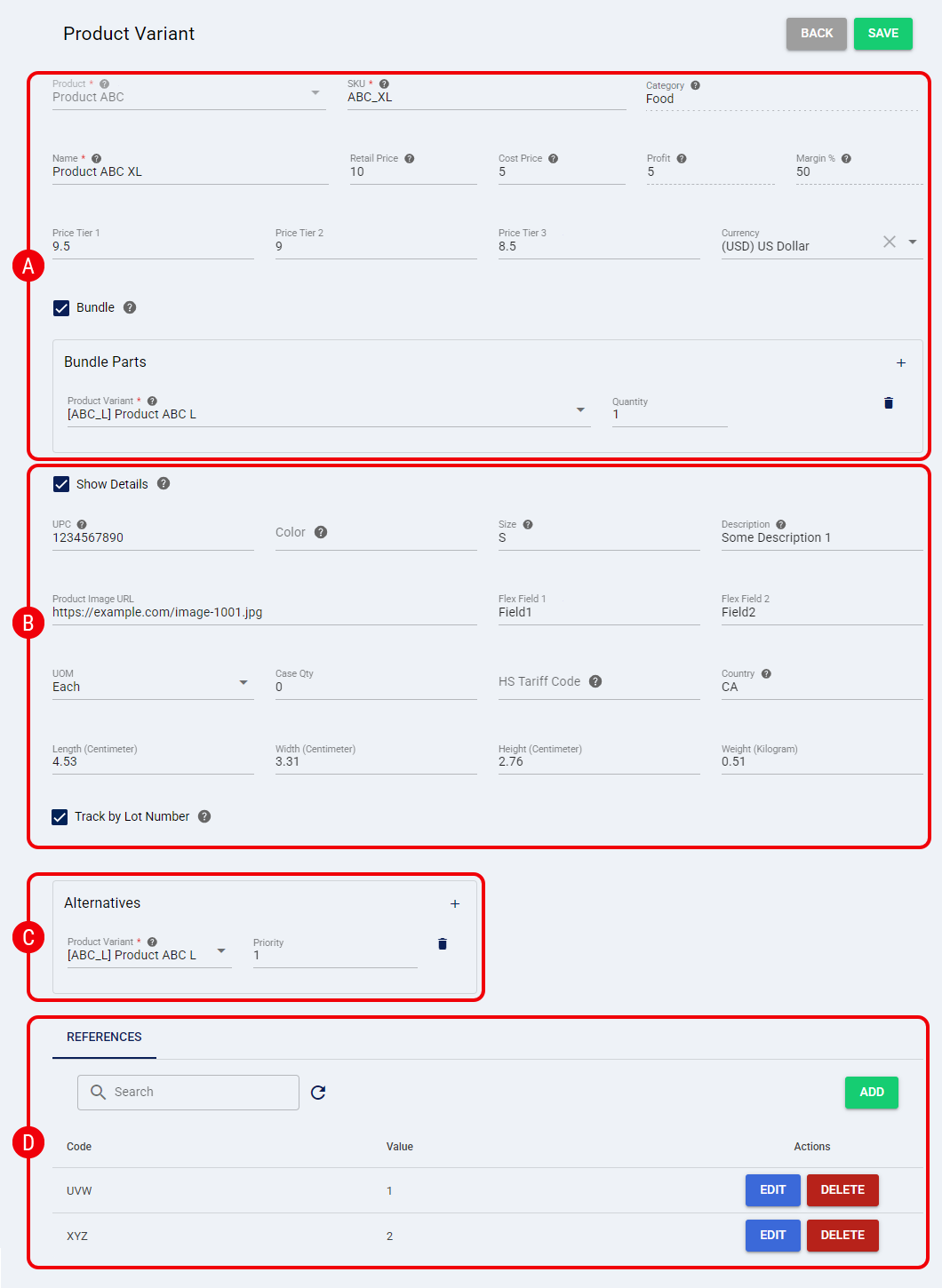
 | General Information: Review and modify the General Information fields for the product variant: |
- Product: Main product name (Read-Only).
- Category: Displays the Category assigned to the parent Product. This field is read-only and cannot be changed from the Product Variant page. For more information, refer to How to Edit a Product [Step-by-Step Guide].
- SKU: SKU Code.
- Name: Variant name.
- Retail Price: The selling price of the product (Optional; defaults to 0 if blank).
- Cost Price: The cost of the item (Optional; defaults to 0 if blank).
- Profit: (Read-only) The calculated difference between Retail Price and Cost Price.
- Margin %: (Read-only) The calculated percentage of profit.
- Price Tier 1: Tiered pricing value (Optional).
- Price Tier 2: Tiered pricing value (Optional).
- Price Tier 3: Tiered pricing value (Optional).
- Currency: Dropdown to define the currency code for the pricing fields (Optional).
- Bundle: If checked, it indicates the SKU is part of a bundle.
 | Show Details: Review and modify the Show Details expanded fields. Check the Show Details box to display and modify the following: |
- UPC: UPC number.
- Color: Variant color.
- Size: Non-dimensional size (e.g., S, M, L, XL, XXL, etc.).
- Description: Product's description .The maximum character limit in techOMS is 4096 characters.
When orders are transmitted to fulfillment channels, the description is automatically truncated to a maximum of 255 characters to ensure integration compatibility. - Product Image URL: Valid URL link for the product image (Optional).
- Flex Field 1: Free-text field for client-specific metadata (Optional).
- Flex Field 2: Free-text field for client-specific metadata (Optional).
- UOM: Unit of Measure that defines how the variant is packaged.
- Case Qty: Amount of SKUs per code.
- HS Tariff Code: Harmonized System Tariff Code value.
- Country: Country of manufacturing.
- Dimensions: Length, Width, and Height.
- Weight: Item weight.
- Track by Lot Number: Select this checkbox to enable lot tracking for the Product Variant, or clear it to disable lot tracking. This option is not available when the Product Variant is configured as a Bundle.
Track by Lot Number determines how techOMS handles lot-tracked Product Variants during allocation. For detailed conceptual information and advanced configuration, refer to Understanding Lot and Serial Numbers [Information].
 | Alternatives: Manage the Alternatives for the product variant. Press the Add or Remove button to add or remove SKUs that could be used when the primary variant is not available. |
When adding one, indicate:
- Product Variant: Type the name of the product you will add and select from the filtered options in the dropdown.
- Priority: Indicate the priority to use this SKU over others.
 | References: Manage the References for the product variant. Click Add to create a Reference for the SKU, or use the Search Bar to find References in the list. When you add or edit a Reference, both Code and Value are required. Reference Code supports a maximum of 255 characters; if you exceed this limit, techOMS prevents you from saving the Reference. |
| The external Sales Channel ID from your Master Product Source may be automatically generated and stored in this list during catalog synchronization to ensure accurate product matching. For more details, refer to Understanding the techOMS Master Product Source [Information]. | |
| | ||
Information in this section can be edited by clicking Edit or removed by clicking Delete and confirming the actions.
Editing a Product Variant
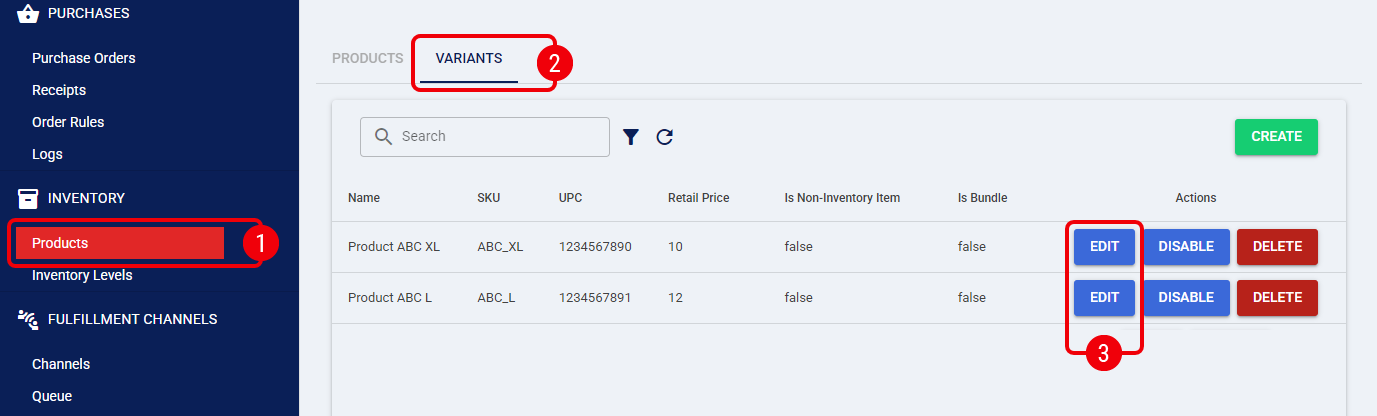
 | Click Products from the left menu under the Inventory section. |
 | Click the Variants tab to see the product variant list. |
 | Press Edit next to the variant you want to modify. |
 | Modify the fields accordingly. |
Refer to the Product Variant Interface section above to know the details of what can be modified.
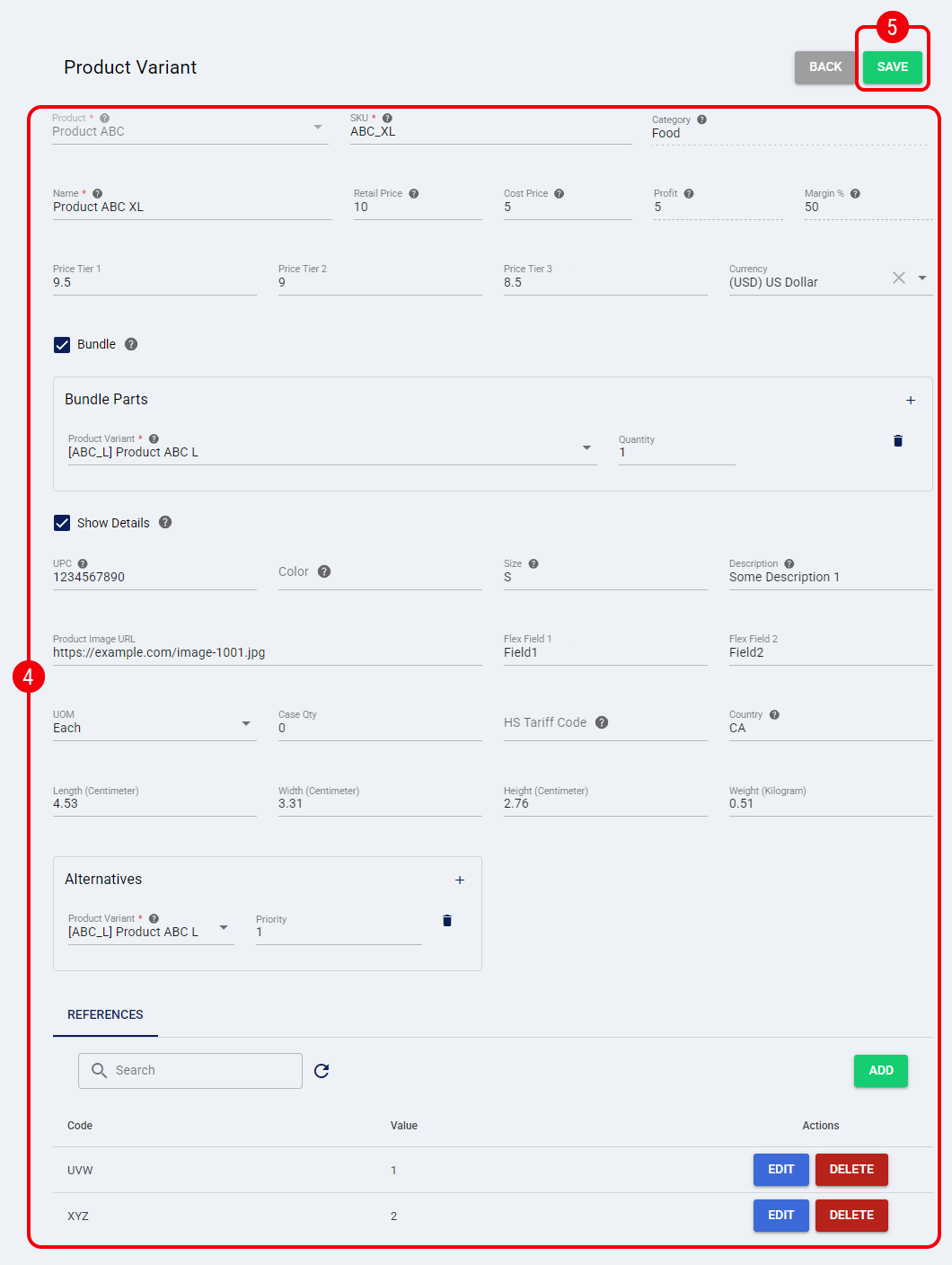
 | Press Save to apply the changes. |
The product variant details are now successfully updated and saved in the system.
Was this article helpful?
That’s Great!
Thank you for your feedback
Sorry! We couldn't be helpful
Thank you for your feedback
Feedback sent
We appreciate your effort and will try to fix the article