Once you have created an inventory level, you can begin to balance it. A SKU's stock level can be adjusted to positive or negative values manually within techOMS.
This guide covers how to adjust stock levels manually for existing inventory.
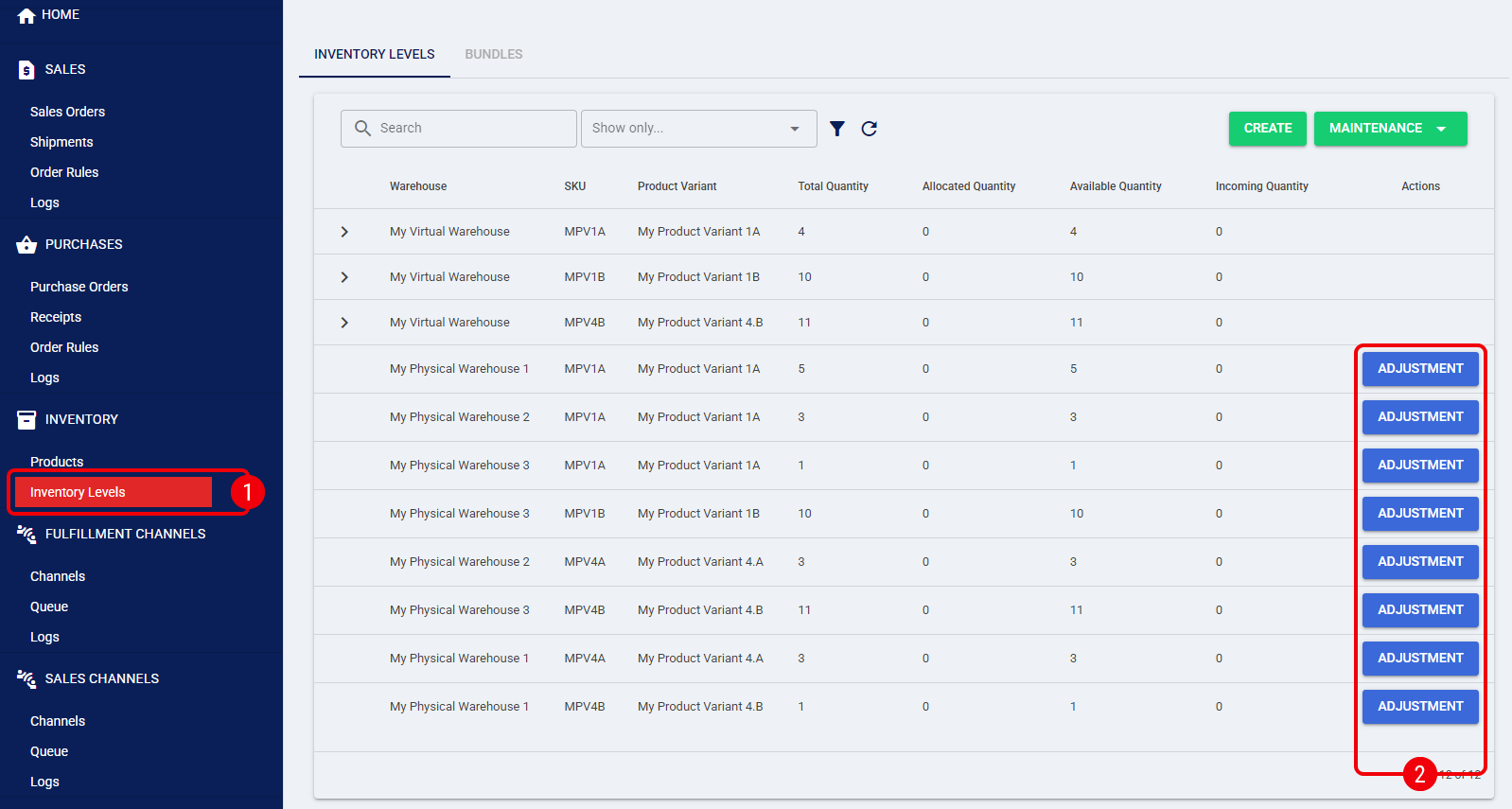
 | Inventory levels can only be adjusted for physical warehouses. Because Virtual Warehouses are aggregated logical groupings, you cannot directly adjust their inventory. All manual adjustments must be made at the member physical warehouse level. For more information, refer to Understanding Virtual Warehouses and Virtual Inventory [Information]. | |
| | ||
| Make sure that you are operating at the correct Account in the top header before proceeding. | |
| | ||
To adjust an inventory level:
 | Click Inventory Levels from the left menu under the Inventory section. |
 | Press Adjustment on the row of the SKU you want to modify to deploy the adjustment fields. |
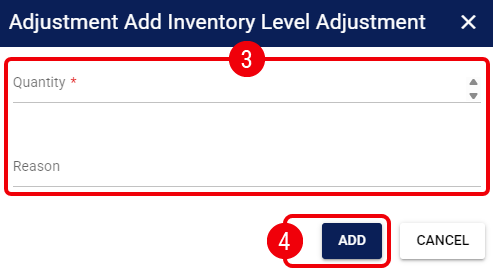
 | Complete the fields accordingly: |
- Quantity: Indicate the amount to add or subtract for that SKU. You can type the value or use the up and down arrows. This field accepts negative values.
- Reason: Enter a brief reason for the adjustment.
| This adjustment will directly increase or decrease your Total Quantity and Available Quantity. For more details on these counters, refer to Understanding Inventory Levels and Order Status Impact [Information]. | |
| | ||
 | Press Add to apply the changes. |
The inventory level is now adjusted, and the updated quantities will be reflected immediately across your physical and virtual warehouse dashboards.
Was this article helpful?
That’s Great!
Thank you for your feedback
Sorry! We couldn't be helpful
Thank you for your feedback
Feedback sent
We appreciate your effort and will try to fix the article