The techOMS packing workspace provides a native manual fulfillment alternative for businesses operating without an external warehouse application.
This article explains the foundational architecture of the techOMS packing module, including its status lifecycle, core workflow, and configuration rules.
 | The techOMS native packing module is currently in Beta. | |
Prefer listening? This podcast-style audio walks you through the article's key points.
 | AI-Assisted & Human-Reviewed: For general information only. Please double-check important details. | |
TABLE OF CONTENTS
- Native Manual Fulfillment Workflow
- Eligibility and Configuration Rules
- Shipment Status Lifecycle
- Known Limitations and Exclusions
- Next Steps
Native Manual Fulfillment Workflow
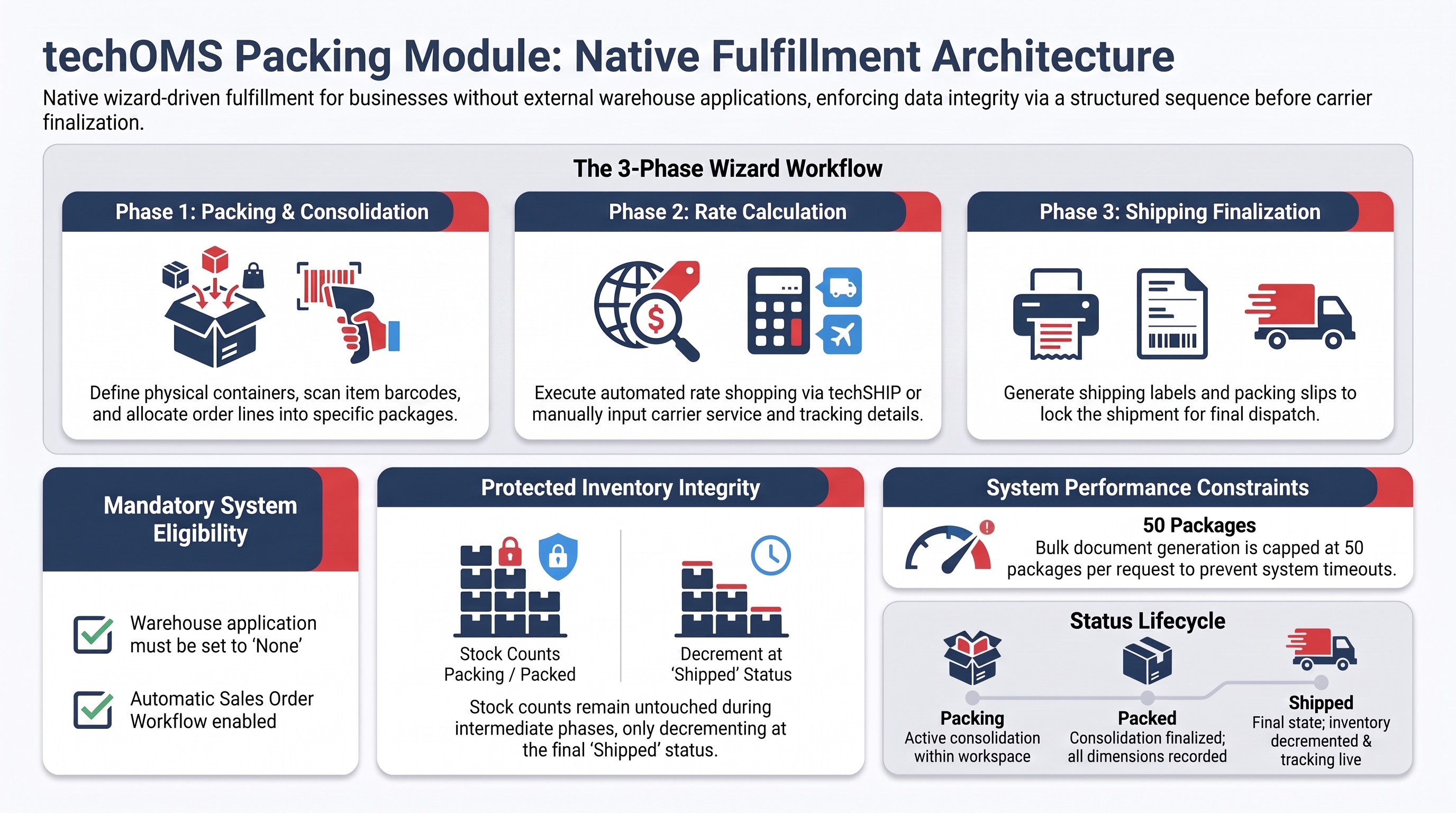
The techOMS packing module utilizes a wizard-driven architecture designed to reduce user error and enforce a logical operational sequence. By guiding you through three distinct phases—Packing, Rates, and Shipping—the system ensures that no critical data point is bypassed.

This structural workflow enforces data integrity before any external carrier communication occurs. By requiring mandatory physical attributes, the system prevents downstream carrier chargebacks and financial discrepancies before data ever reaches techSHIP.
Eligibility and Configuration Rules
Warehouse Application Requirements
To use the native packing workspace, your warehouse must be configured with the application type set to None.
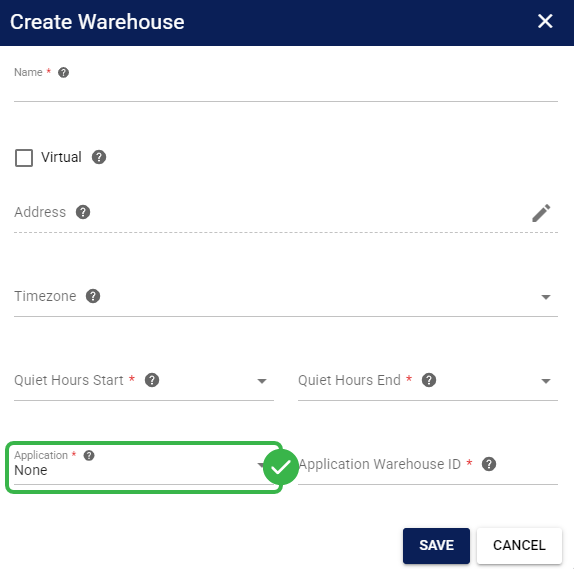
This setting automatically hides external synchronization tabs within the associated Fulfillment Channel interface to provide a clean workspace. For detailed conceptual information and advanced configuration, refer to How to Manage Organization Warehouses: Create, Edit, and Delete [Step-by-Step Guide].
Order Eligibility
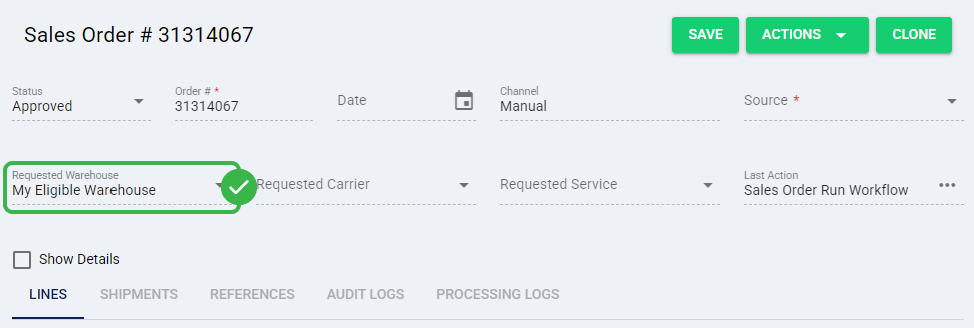
For a shipment to be processed through the native packing workspace, its Requested Warehouse must be assigned to a facility configured with the None application type. Orders routed to standard warehouses linked to external systems will bypass this module and follow standard external fulfillment pathways.
API v1 Workflow Incompatibility
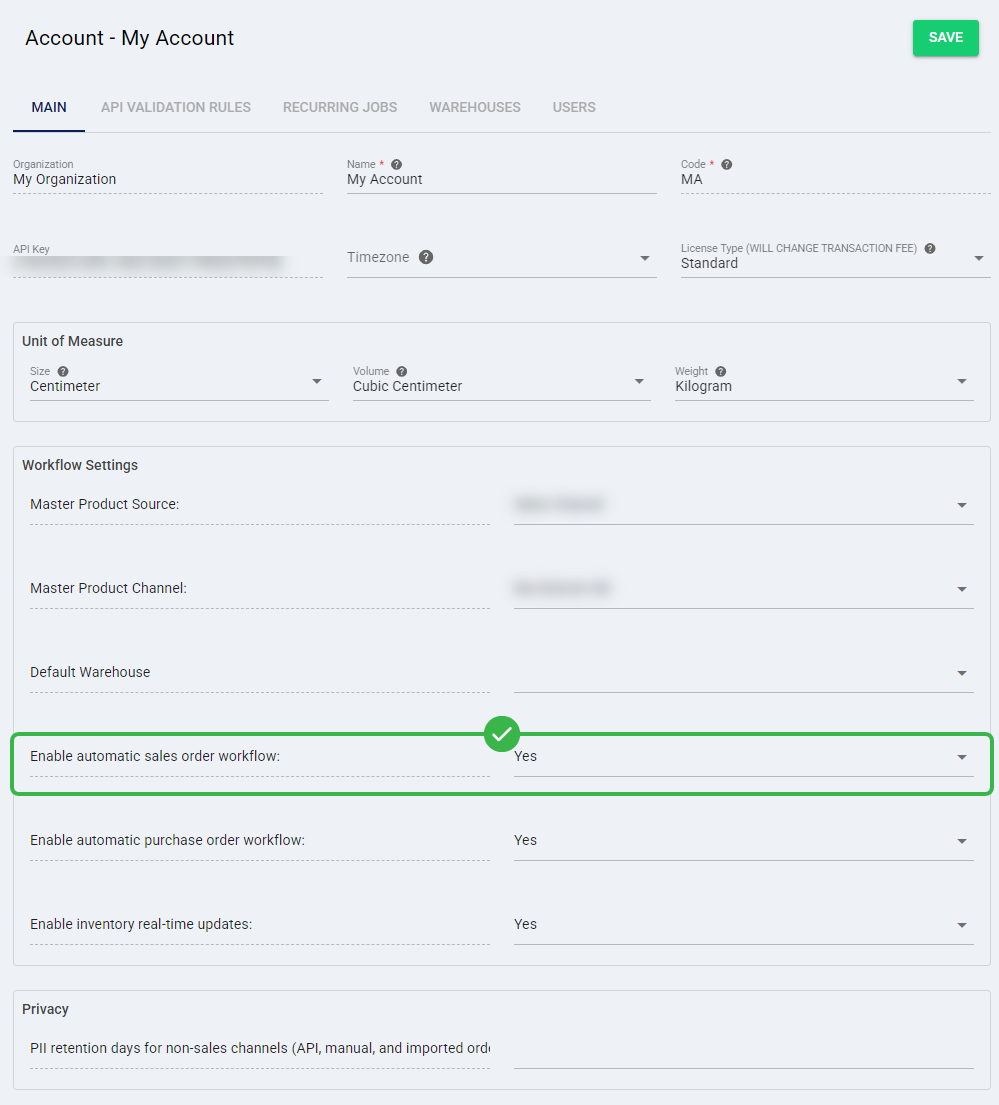
To ensure the packing module operates correctly, the Enable automatic sales order workflow account setting must be set to Yes. Setting this configuration to No forces reliance on legacy API v1 workflows, breaking the native techOMS package generation.
For detailed conceptual information and advanced configuration, refer to How to Edit an Account [Step-by-Step Guide].
techSHIP Integration Setup
While the packing module functions as a completely manual fulfillment tool, integrating it with techSHIP enables automated rate shopping and label generation. If your warehouse is not integrated with techSHIP, you can still process orders by manually inputting carrier, service, and tracking number details during the wizard steps.
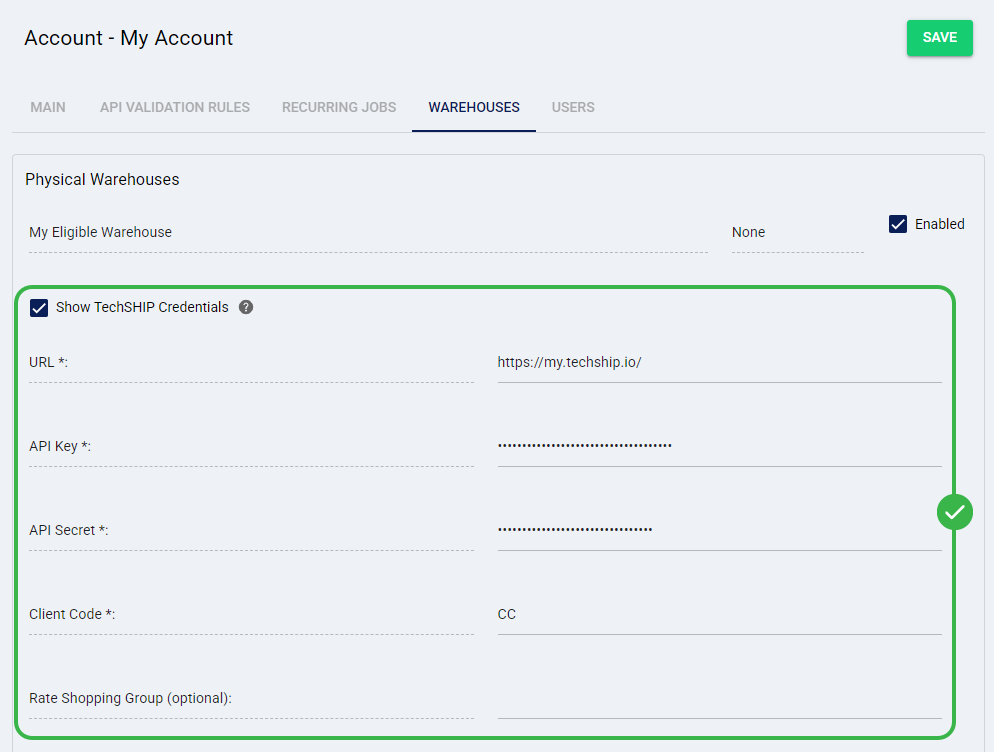
For detailed instructions on configuring this integration, refer to How to Manage Account Warehouses and Fulfillment Channels [Step-by-Step Guide].
Print Client Infrastructure
Additionally, to print documents such as Labels and Packing Slips directly from the packing workflow, you must configure the necessary infrastructure for physical printing by setting up an active print client connection.
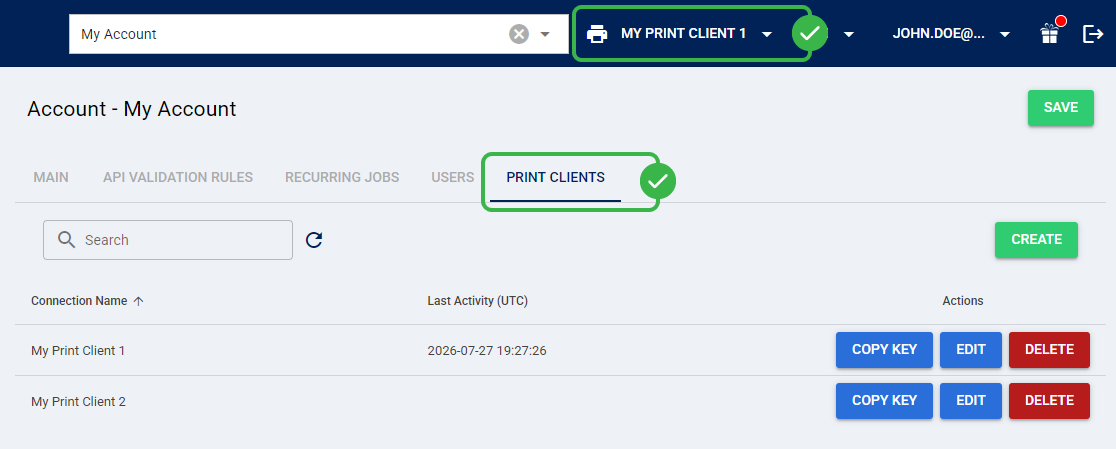
For detailed conceptual information and advanced configuration, refer to How to Manage Print Clients in techOMS [Step-by-Step Guide].
Shipment Status Lifecycle
As you process orders through the native packing framework, your shipment progresses through a strict sequence of system statuses.
STATUS | DESCRIPTION |
Ready to Send | The initial state applied after inventory allocation is successfully completed. |
Packing | Indicates that you are actively working within the packing workspace and consolidating items. |
Packed | Confirms that package consolidation is finalized and all mandatory dimensions are recorded. |
Processing | A transient state indicating that carrier communication is currently in progress. |
Shipped | Confirms that fulfillment is complete and labels are successfully generated or tracking is manually recorded. |
Short Shipped | Indicates that the shipment was completed, but some allocated items were left out of the final packages and were not shipped. |
Protected Inventory Integrity
The Packing and Packed statuses have absolutely no further impact on your Total Quantity, Allocated Quantity, or Available Quantity. The application is simply organizing allocated items into physical boxes at this stage.
Inventory is only definitively decremented once the fully packed shipment officially reaches the Shipped or Short Shipped status. Furthermore, the Mark Order as Shipped action is strictly disabled if any associated shipments are currently in the Packing or Packed status, preventing you from closing an order prematurely.
For complete details on how different statuses affect your stock, refer to Understanding Inventory Levels and Order Status Impact [Information].
Known Limitations and Exclusions
Certain techOMS features remain incompatible with the native packing framework:
- Time and Transit (TNT): Do not use a warehouse assigned the None application type within any Calculate Time & Transit action, as external mappings are required to calculate rates. For detailed conceptual information and advanced configuration, refer to How to Use the Calculate Time & Transit (TNT) Action [Guide].
- Hardware Integration: Dimensional scales remain unsupported; you must manually key all dimensions into the interface. However, hardware barcode scanners are fully supported, provided they are configured to function as standard keyboard input.
- Bulk Document Generation: Exporting or printing Labels and Packing Slips is strictly limited to a maximum of 50 packages per request to preserve system performance and prevent timeouts.
- Package Tracking & References: You can assign custom key/value references to individual packages. Adding these references is completely optional. However, if you choose to add a reference, both the Code and Value fields are mandatory. Furthermore, the Code must be strictly unique per package.
- Serial and Lot Numbers: The system does not strictly link Serial Numbers and Lot Numbers together. If a product variant requires both, it is entirely your responsibility to ensure the consistency of this cross-tracking data. During Move and Unpack actions, the system will not prevent you from selecting a non-existent combination of a Serial Number and a Lot Number (e.g., mixing a serial from one item with the lot of another).
Next Steps
Once you verify that your account and warehouses meet these operational rules, you can begin executing orders. For complete procedural instructions on navigating the 3-step wizard and building packages, refer to How to Pack Shipments [Step-by-Step Guide].
Was this article helpful?
That’s Great!
Thank you for your feedback
Sorry! We couldn't be helpful
Thank you for your feedback
Feedback sent
We appreciate your effort and will try to fix the article