To connect Faire, first create the Sales Channel connection, and then set up its parameters.
Once the connection is established between the channel and techOMS, you can use its supported features as listed in: techOMS Sales Channels - Master List [Guides List].
This article is divided into the following sections:
- Onboarding Requirements
- Create the Sales Channel
- Configure Additional Parameters
 NOTE : Make sure that you are operating at the correct Vendor/Warehouse beforehand.
I. ONBOARDING REQUIREMENTS
- Access Token for the Faire connection (entered in Channel Settings).
- Pull Orders Statuses selection (configured in Channel Settings).
- Access to the Vendor/Warehouse in techOMS where the channel will be created and managed.
II. CREATE THE SALES CHANNEL
To create a Faire Sales Channel, follow: How to Create a Sales Channel [Step-by-step guide].
III. CONFIGURE ADDITIONAL PARAMETERS
To configure additional parameters:
- Click Channels from the left menu under the Sales Channels section.
- Click on the created channel's name.
- Use the highlighted areas in the screenshot below and configure the required settings.
SECTIONS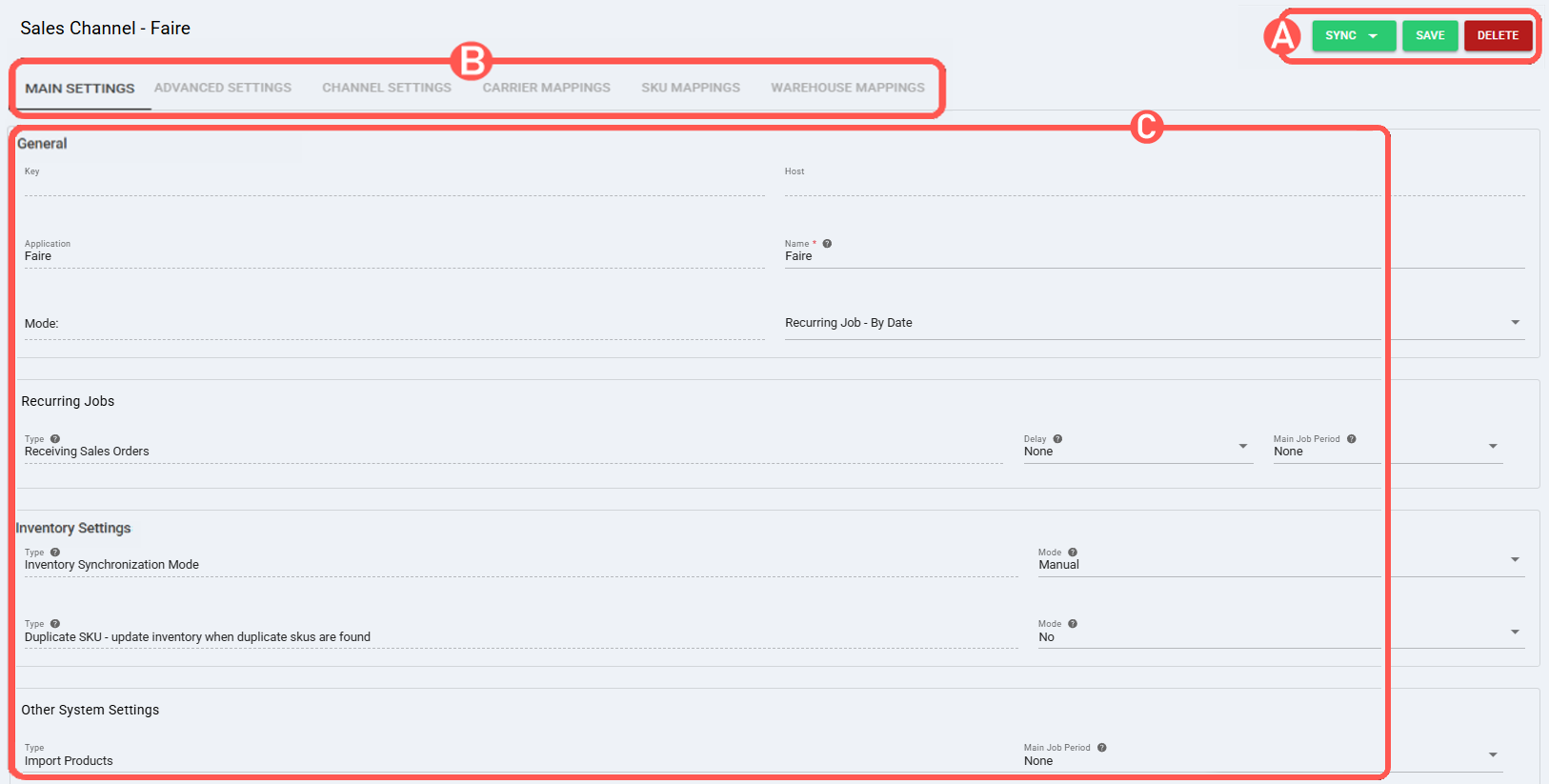
A) QUICK ACTIONS lets you perform additional actions:
- Health Check: Verifies if the connection is active or not.
- Sync: Enables manual synchronization as detailed in How to Synchronize data through a Sales Channel [Step-by-step guide].
Sync options available:- Receive Sales Orders From Channel
- Send Inventory Levels To Channel
- Import Products From Channel
- Save: Saves and commits changes.
- Delete: Deletes the channel connection.
B) VIEW SELECTION allows you to navigate the different tabs:
- Main settings (default): Configures general and automation behavior using: Main Settings of a Beta Sales Channel [Information].
- Advanced settings: Configures additional system/privacy settings using: How to manage Fulfillment Channels Advanced settings [Step-by-Step guide].
- Channel settings: Sets the channel integration parameters listed below.
Fields
- Api Url: https://www.faire.com
Base URL used by techOMS to send API requests for this connection. - Access Token: [secret]
Credential used by techOMS to authenticate API requests for this connection. - Pull Orders Statuses (select multiple items): Select one or more statuses
Defines which order statuses are eligible when pulling orders from Faire into techOMS. - Mark Order as Accepted: Yes / No
Sets the value of this channel parameter. - Throughput: Default
Sets the value of this channel parameter.
- Api Url: https://www.faire.com
- Carrier Mappings: Sets Carrier name mappings as detailed in How to map Carriers in a Sales Channel [Step-by-step guide].
- SKU Mappings: Reviews and sets SKU mappings as detailed in How to map SKUs in a Sales Channel [Step-by-step guide].
- Warehouse Mappings: Allows defining, mapping, and linking techOMS warehouse entities to external warehouse entities as described in How to manage Warehouse Mappings [Step-by-step guide].
C) CONTENT VIEW displays and/or allows editing of the settings in the "View Selection" section.
 WARNING: Remember to press Save to commit the changes made in this section.
Was this article helpful?
That’s Great!
Thank you for your feedback
Sorry! We couldn't be helpful
Thank you for your feedback
Feedback sent
We appreciate your effort and will try to fix the article