Balancing and managing stock in bulk is crucial for maintaining operational efficiency across your network. You can use the import and export features in techOMS to quickly download your current stock counts or update them simultaneously.
This guide covers how to export your current inventory and how to import new inventory levels using a formatted file.
 | Virtual warehouses are read-only aggregations of their physical members. You cannot directly import inventory levels into a virtual warehouse. All inventory imports must be mapped strictly to physical warehouses. For more details, refer to Understanding Virtual Warehouses and Virtual Inventory [Information]. | |
| | ||
| Each file can contain up to 10,000 records. Going over this limit will cause data processing issues. | |
| | ||
| Importing and exporting inventory levels currently does not support the lot number dimension. Inventory files will reflect total physical counts per SKU, but will not break them down by specific lot numbers. For detailed information regarding lot-level inventory display, refer to Understanding Lot and Serial Numbers [Information]. | |
| | ||
TABLE OF CONTENTS
Accessing the Maintenance Menu
To import or export inventory levels, you must first access the specific maintenance options for your products.
 | Make sure that you are operating at the correct Account in the top header before proceeding. | |
| | ||
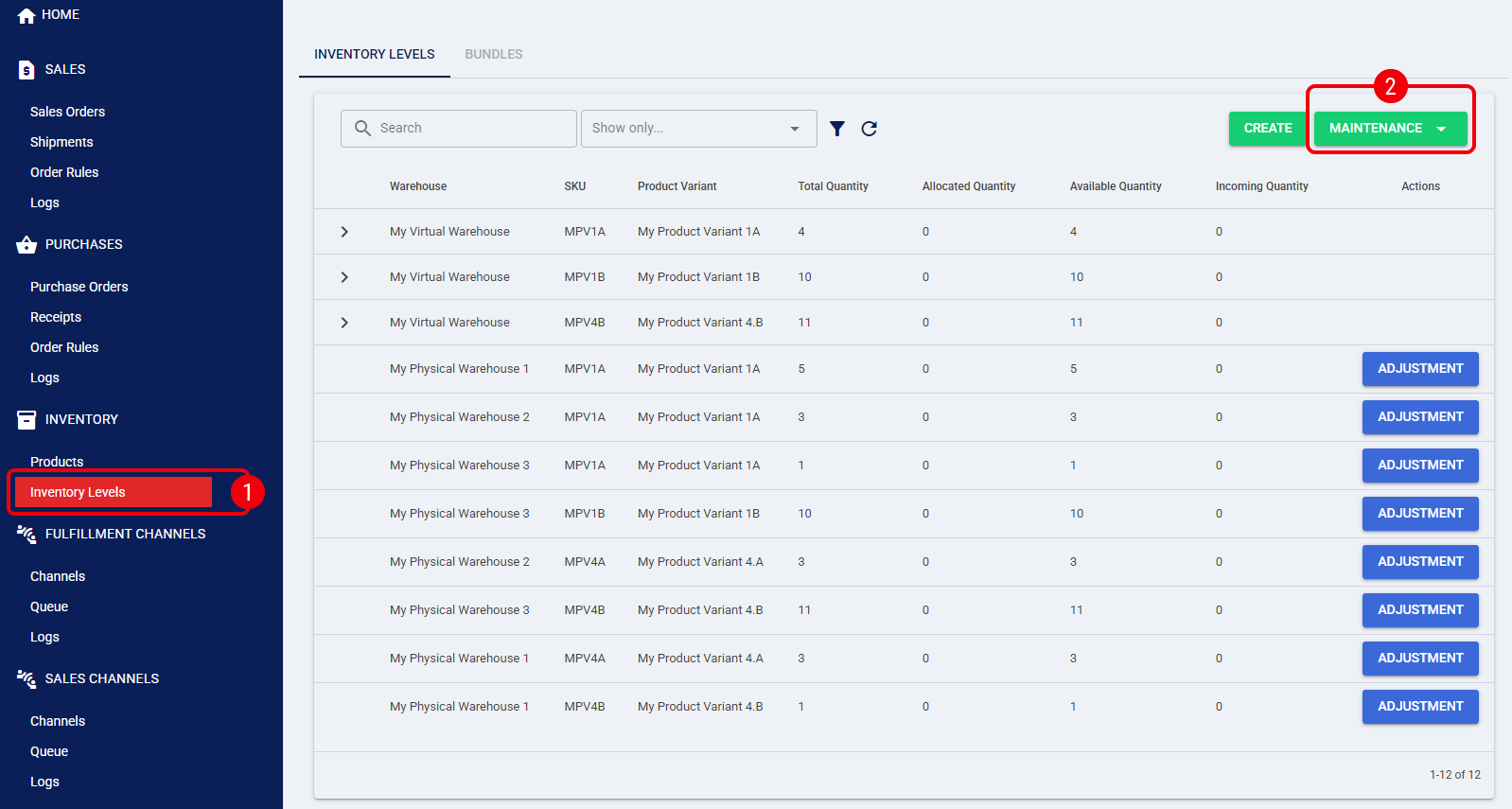
 | Click Inventory Levels from the left menu under the Inventory section. |
 | Press Maintenance . |
Exporting Inventory Levels
Exporting your inventory gives you a complete snapshot of your current stock, which you can also use as a base template for future imports.
| The export file only includes inventory levels from physical warehouses. Virtual warehouses are excluded from the export data. | |
| | ||
To export your inventory, select Export from the maintenance drop-down menu.
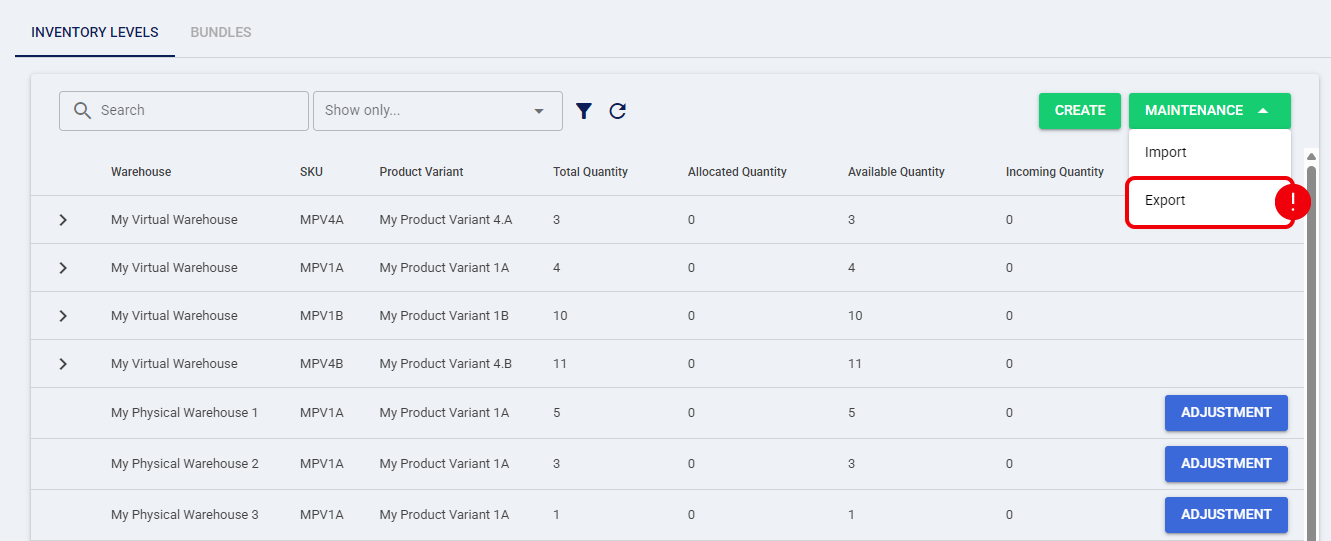
The system will automatically generate and download a CSV file containing your current inventory levels to your device.
Importing Inventory Levels
| The system supports comma (,), semicolon (;), and tab as delimiters. The only supported quotation mark character is the double quote ("). | |
| | ||
| Ensure your file follows the required data schema before attempting an import. You can download the canonical template in the techOMS Canonical Import Files [Information] article. | |
| | ||
To import a file with your inventory counts:
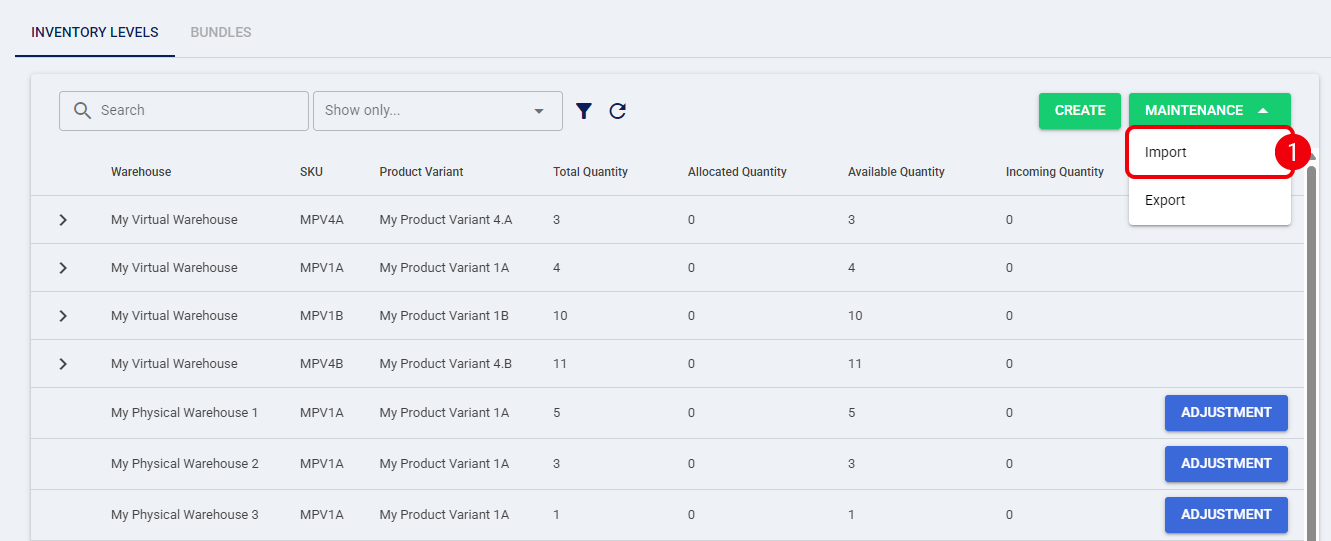
| Select Import from the maintenance drop-down menu. |
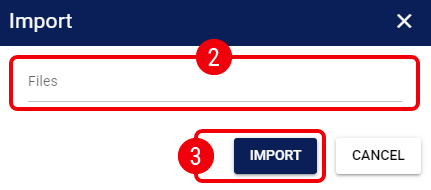
| Click on the Files field and select your formatted file. |
 | Press Import. |
The system will process the file and update the physical inventory counts. Once the process finishes, a popup will display the operation results, detailing the number of successful entries and any errors encountered.
Was this article helpful?
That’s Great!
Thank you for your feedback
Sorry! We couldn't be helpful
Thank you for your feedback
Feedback sent
We appreciate your effort and will try to fix the article